Broker Hub: user guide
All screens and videos show a test company with made-up names and numbers.
On this page
- What it is and why you need it
- How to sign in
- Sign in from CargoETL
- Main screens
- Dashboard
- Lifeline
- Brokers
- Broker card
- Loads
- Vehicles
- Dispatchers
- Lanes
- AI Analysis
- Sent and Communications
- Settings
- Invoices and Outstanding
- How to do it
- Find a broker and open the card ▶
- Find brokers fast: search, filters, sorting, Ctrl+K ▶
- Download a list as CSV
- Leave a note after a call ▶
- Set a follow-up and close it
- Find who to call today ▶
- Check a broker before you take a load ▶
- Write to a broker
- See how brokers rate your team ▶
- Turn on broker feedback ▶
- Connect Gmail
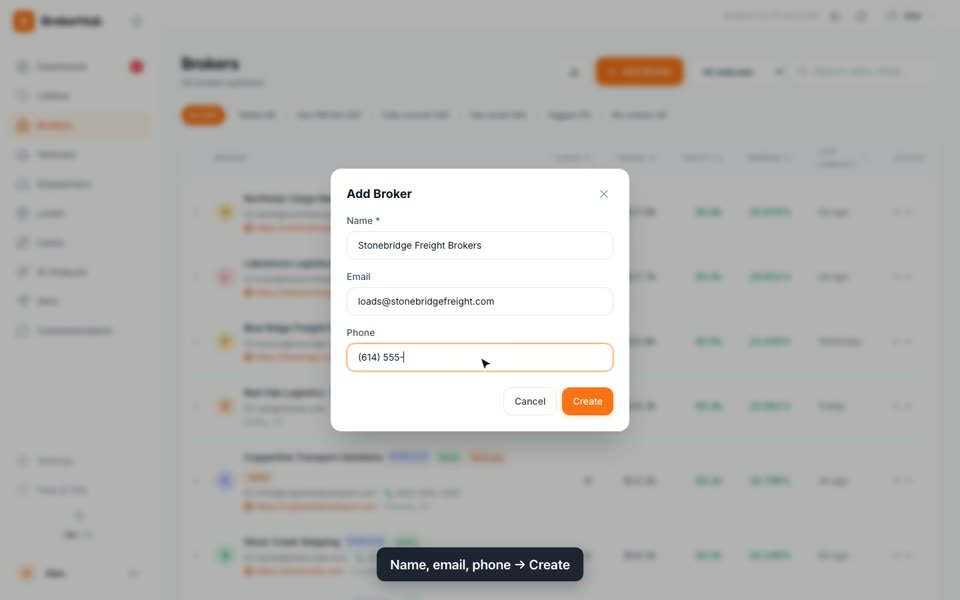
- Add a broker by hand ▶
- Edit a broker
- See which lanes make money ▶
- Find a load and export loads to CSV ▶
- See profit by truck ▶
- Compare dispatchers ▶
- See every email, SMS and call ▶
- Read the AI report ▶
- Tune red-flag scores
- Switch language, theme and menu ▶
- FAQ
- Where do the loads and money come from?
- Can I add a load by hand?
- Why don't the numbers match what I saw yesterday?
- I added a note. Who sees it?
- What does the number in the Red-flag watch-list mean?
- Can I fix the broker's name?
- Why don't I see Settings, Invoices or Outstanding?
- It says "Daily limit reached". What now?
- The broker didn't get the feedback email
- Did the broker reply to my email?
- What is the robot icon at the top?
- Is there a chat with brokers in Broker Hub?
- Does it work on a phone?
- Where did the blue hints and the welcome tour go?
- All videos (16)
What it is and why you need it
Broker Hub is a CRM for your brokers. It keeps every broker you haul for in one place: their loads, gross, profit and margin, how fast they pay, notes from your calls, reminders, and an FMCSA check.
Loads, prices and statuses come from CargoETL on their own, about once an hour. You don't type loads in by hand. Your job in Broker Hub is the relationship: who to call today, who is going quiet, who pays slowly, which lanes make money.
Who uses it: - Dispatchers: notes after calls, follow-ups, checking a broker before taking a load, their own results - Owners and managers: which brokers, lanes, trucks and dispatchers bring profit, who owes money, who stopped giving loads, company settings
What each role sees: - Owners, admins and managers see everything, including Settings, adding and editing brokers, and finance (Invoices, Outstanding) if your company has ETL Finance connected - Dispatchers see all screens of their company and can leave notes, follow-ups and tags, write to brokers and use the AI features. They don't see Settings and can't add or edit brokers. AI, emails, SMS and calls have a daily limit for dispatchers
How to sign in
Sign in from CargoETL
- Open CargoETL.
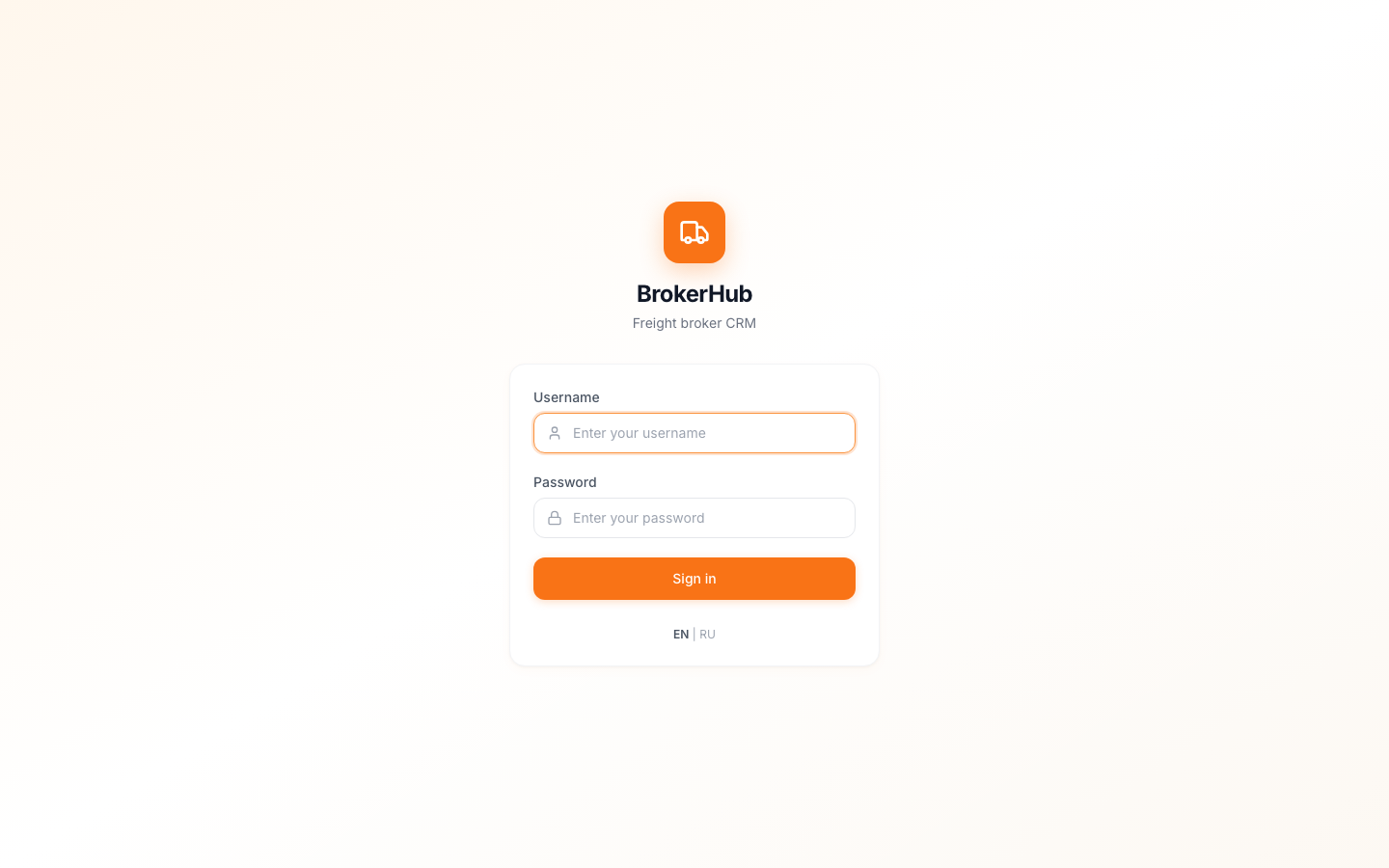
- In the side menu, click the letter B. Broker Hub opens in a new tab, already signed in under your company. No separate password is needed. For now the B button is shown to company admins only.
- If your company was given a direct login, open v3.brokerhub-online.com and sign in with Username and Password, or with Sign in with Google if it's switched on for your company.
Main screens
The side menu has: Dashboard, Lifeline, Brokers, Vehicles, Dispatchers, Loads, Lanes, AI Analysis, Sent, Communications. At the bottom: Settings (owners and managers), Help & FAQ, the theme switch and EN | RU.
At the top right of every screen: - the period: 24h, 7d, 30d, 90d or Custom dates. Every number on the screen follows it - the robot icon: the assistant - the refresh button and the time of the last sync with CargoETL (Updated …)
Dashboard
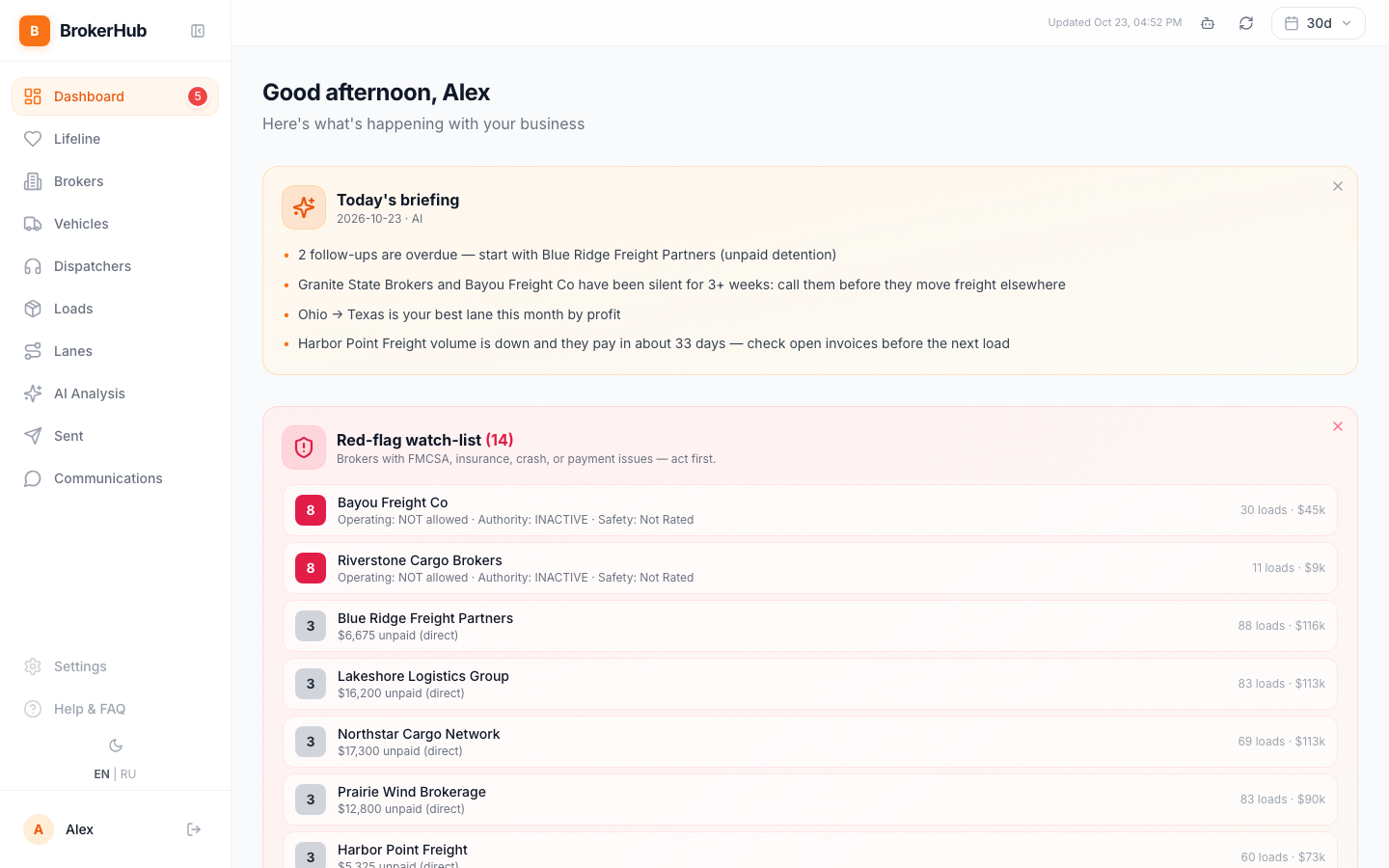
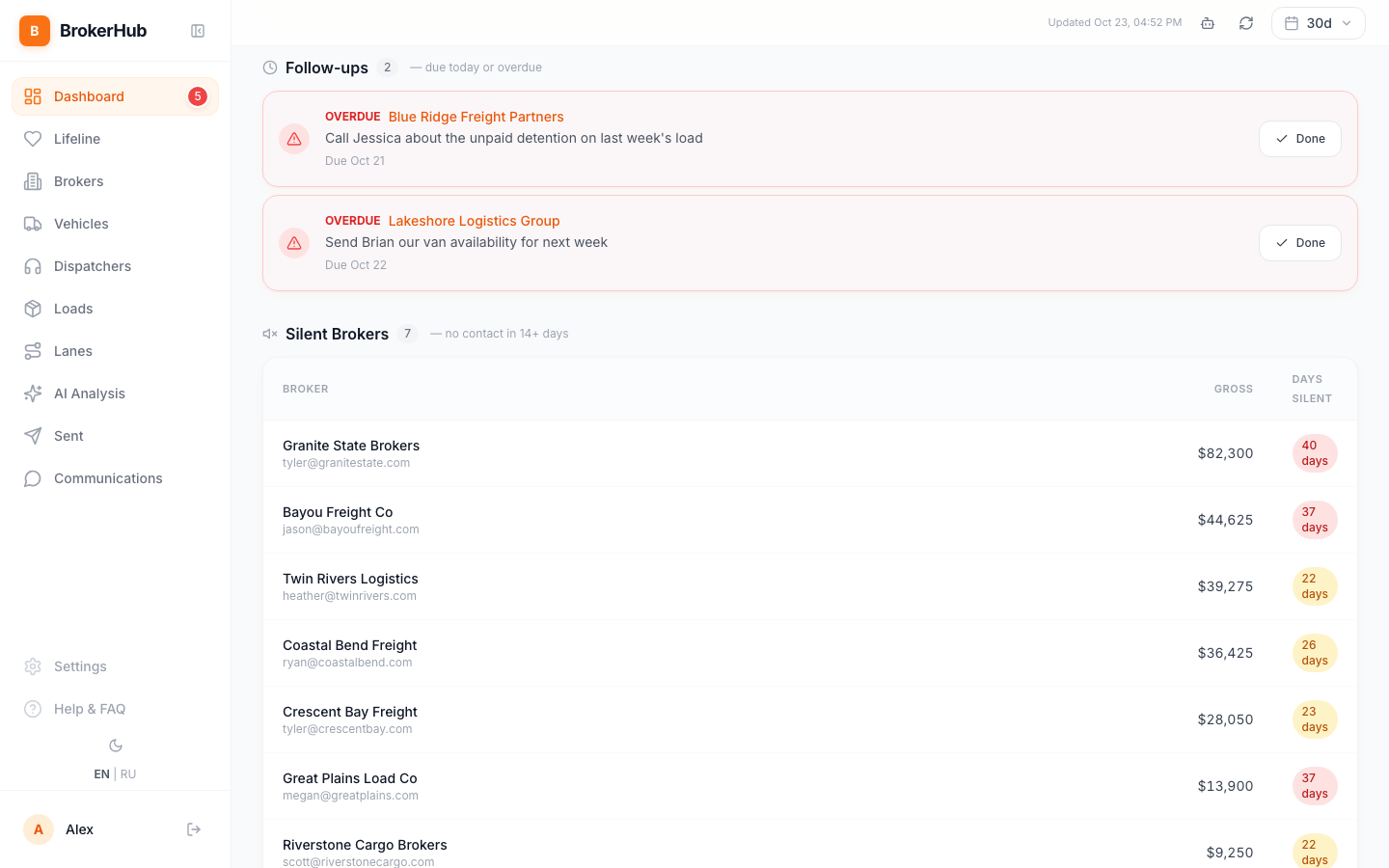
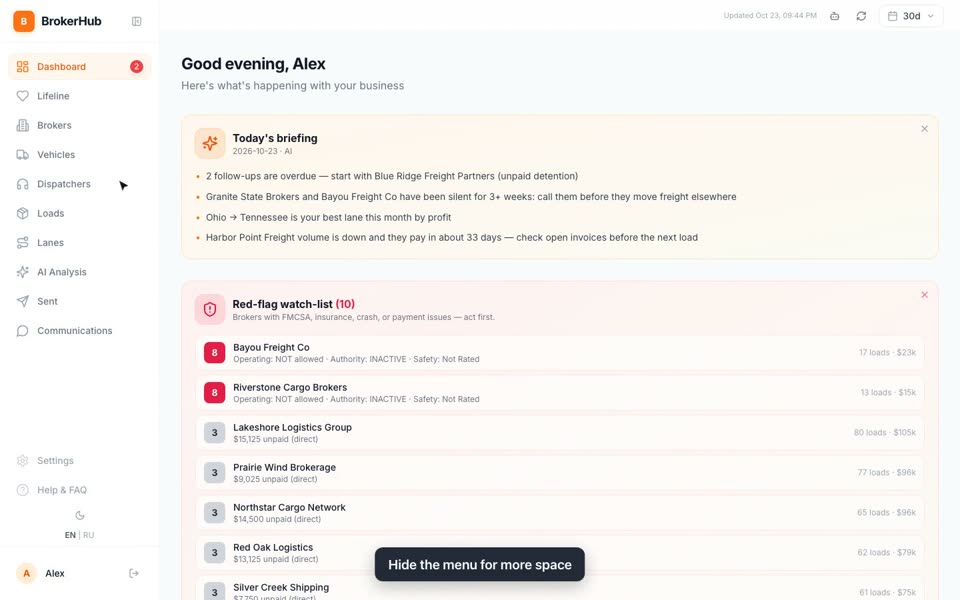
Your start page for the day, top to bottom: - Today's briefing: a few lines on what needs attention first - Red-flag watch-list: brokers with FMCSA, insurance, crash or payment problems. The number on the left is how serious it is - cards for the period: Brokers, Carriers, Active Loads, Gross, Profit, Margin - Today: the same numbers for the current day only - Follow-ups: reminders due today or overdue, with a Done button - Silent Brokers: brokers with no contact for 14+ days
The red number next to Dashboard in the menu is how many follow-ups are due today or overdue.
Lifeline
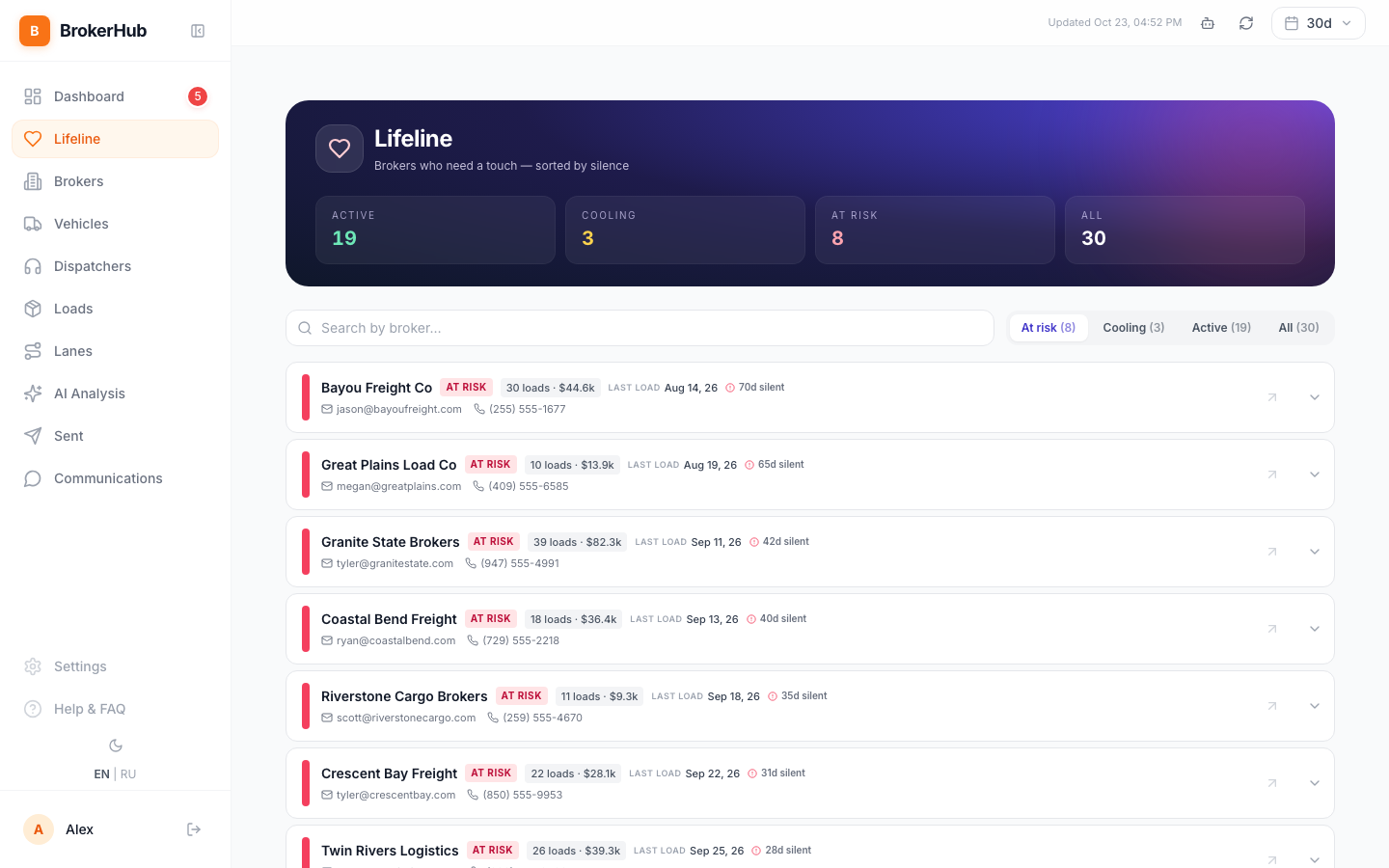
Brokers sorted by silence: how many days since the last load. At the top: how many are Active, Cooling and At risk. Tabs At risk, Cooling, Active, All. Use it to decide who to call before they give freight to someone else.
Brokers
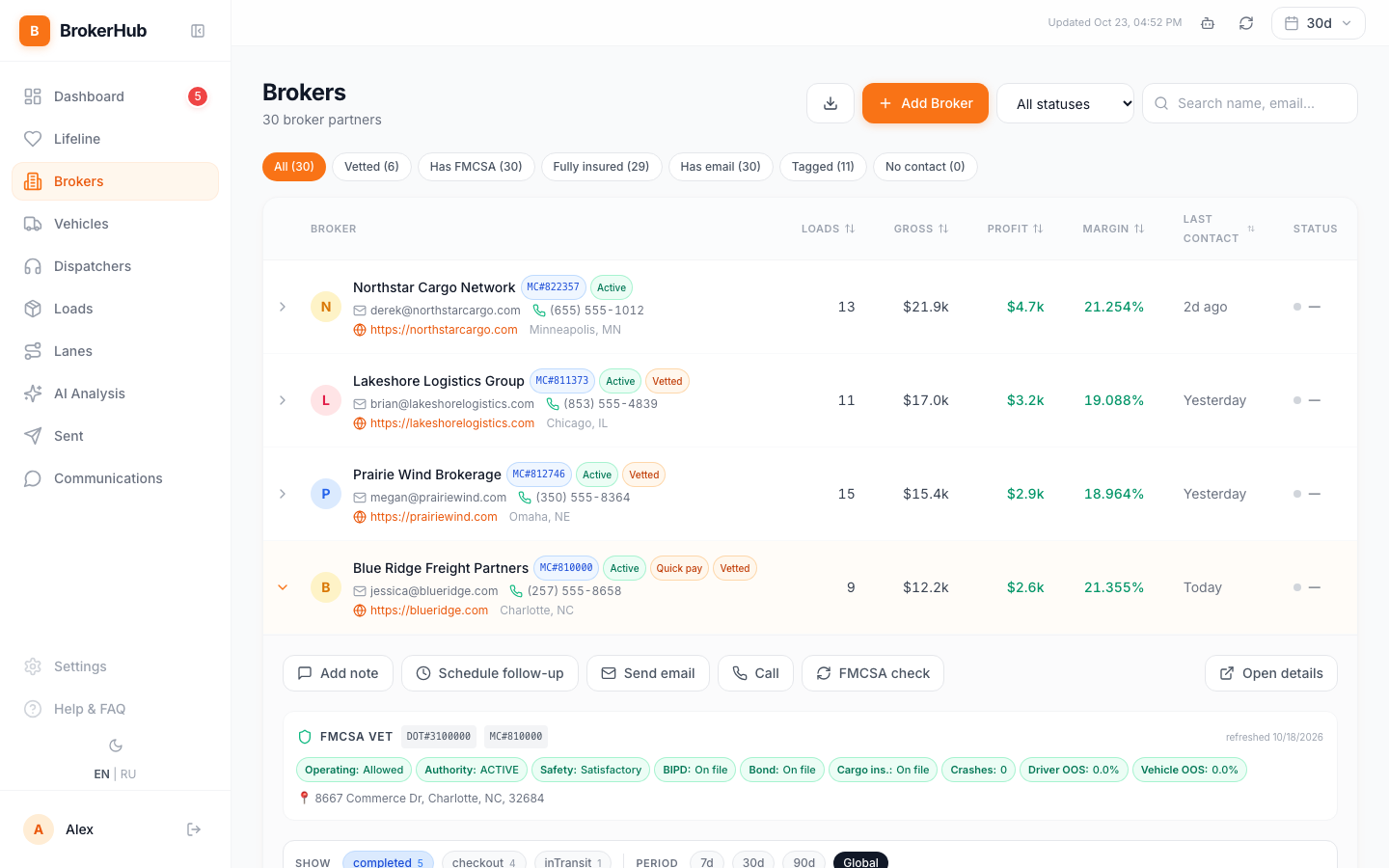
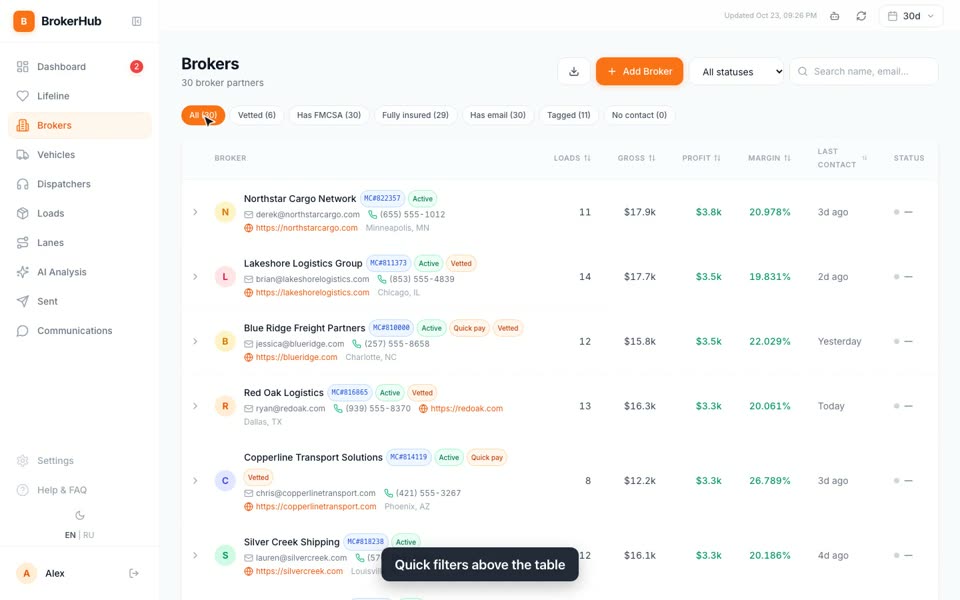
All brokers with LOADS, GROSS, PROFIT, MARGIN and LAST CONTACT for the period. Quick filters above the table: Vetted, Has FMCSA, Fully insured, Has email, Tagged, No contact. Click a column header to sort.
Click a row to expand it. You get quick actions (Add note, Schedule follow-up, Send email, Call, FMCSA check), the FMCSA line and the broker's latest loads. Open details opens the full card.
Broker card
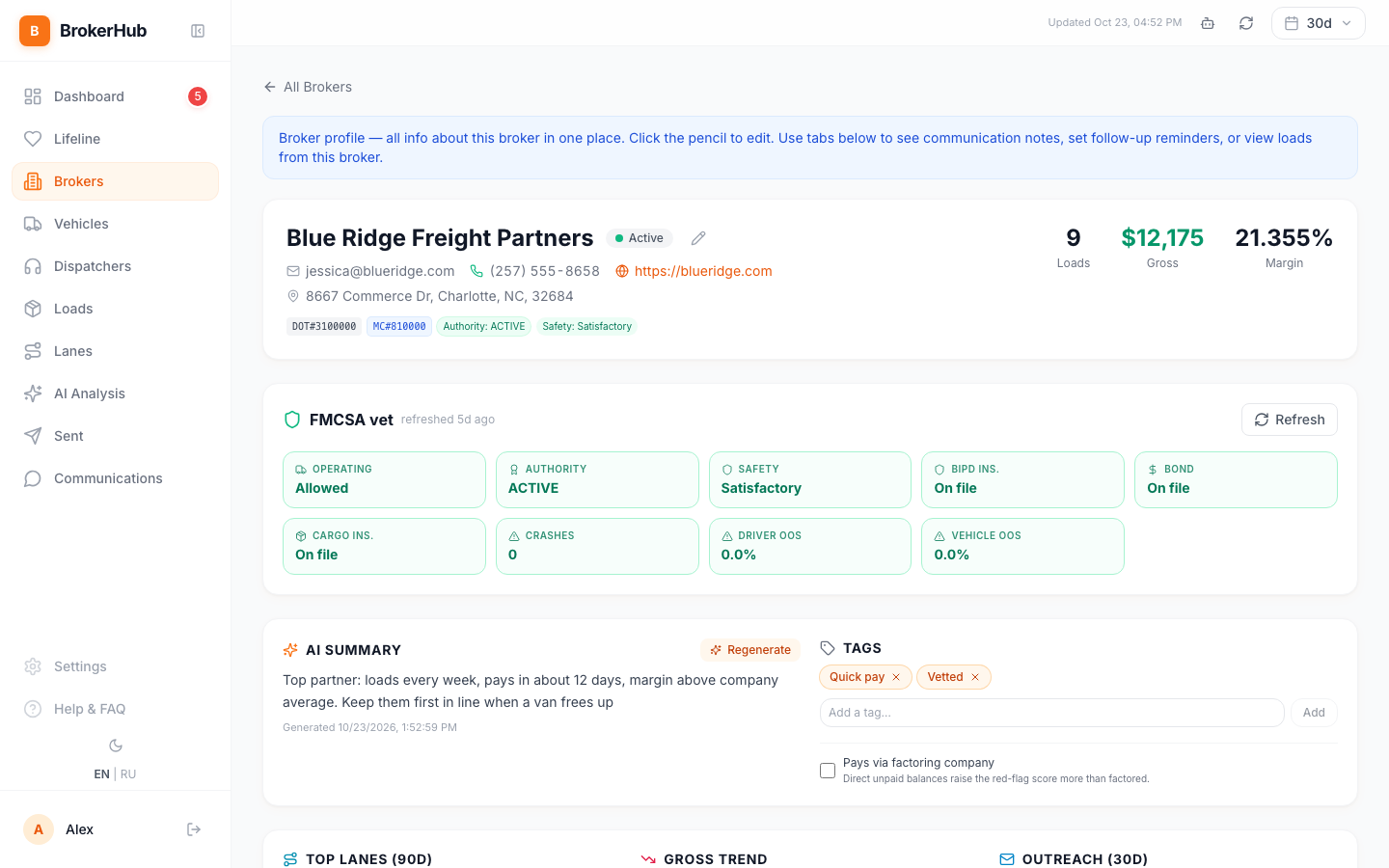
- top: name, contacts, MC and DOT, Loads, Gross, Margin for the period
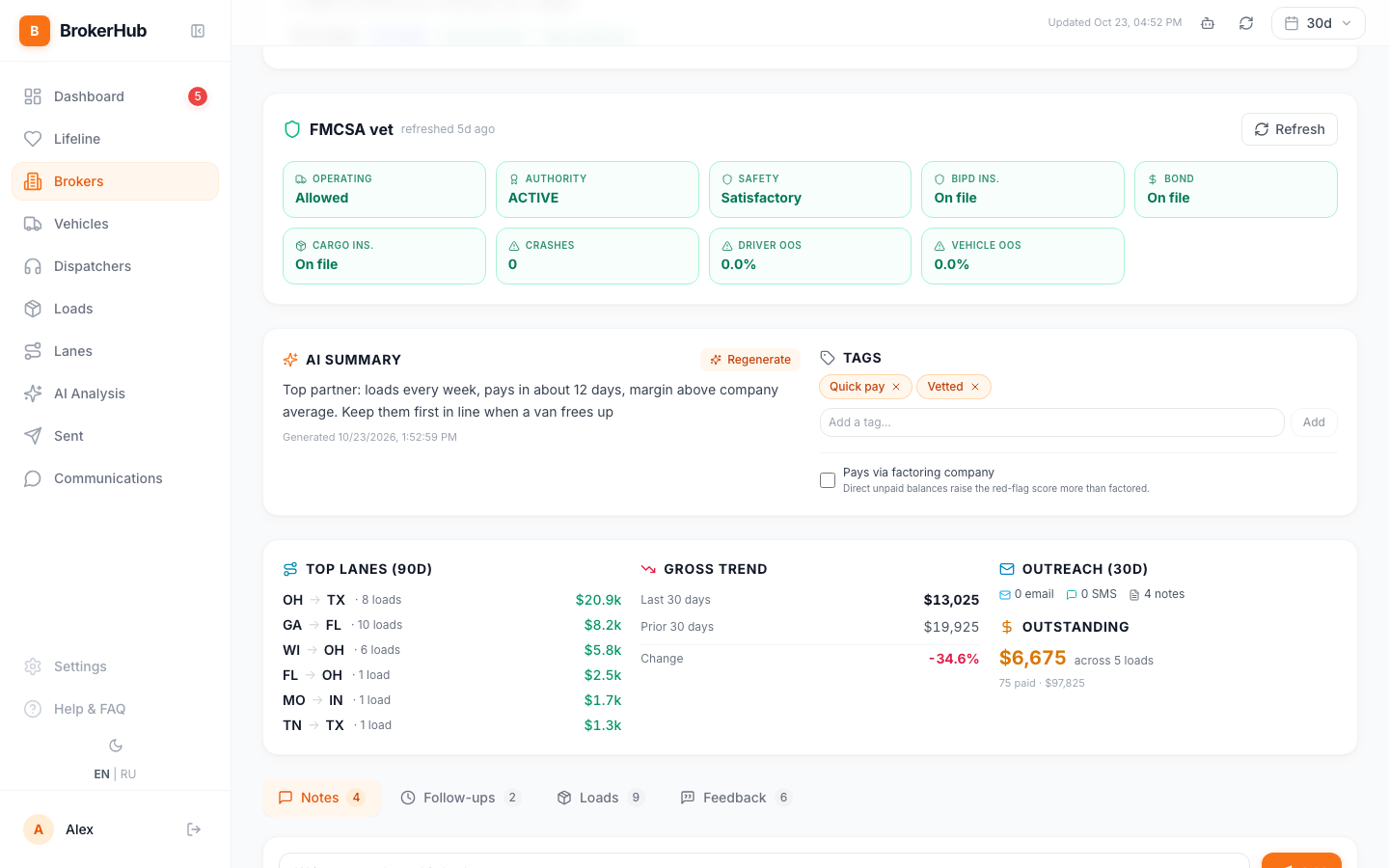
- FMCSA vet: operating, authority, safety rating, insurance, crashes, out-of-service rates
- AI summary: the broker in two or three plain sentences, and Tags
- Top lanes (90d), Gross trend (last 30 days against the 30 before), Outreach (30d) and Outstanding (money not paid yet)
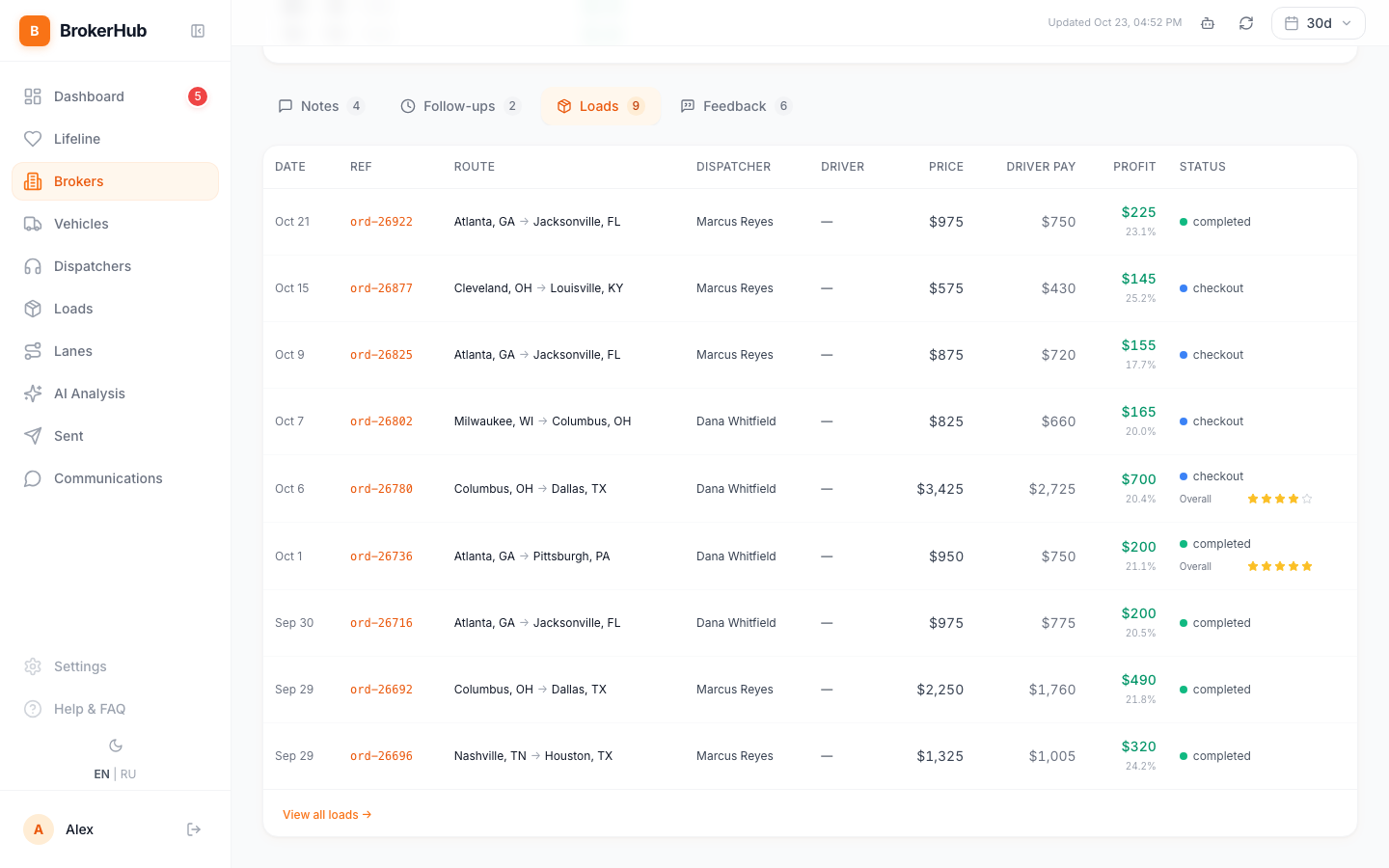
- tabs: Notes, Follow-ups, Loads, Feedback
Loads
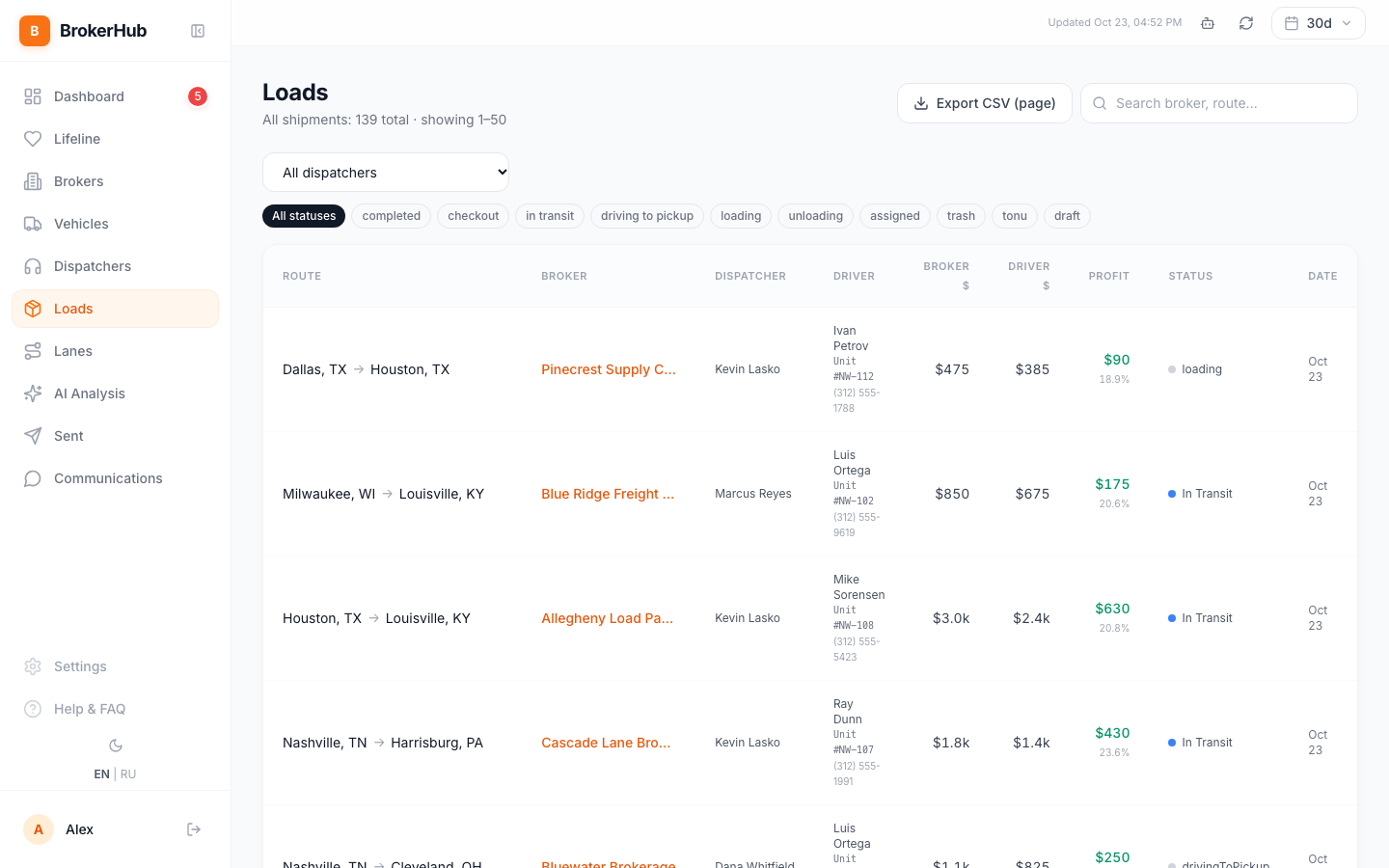
Every load for the period: route, broker, dispatcher, driver and unit, BROKER $, DRIVER $, PROFIT, status and date. Filter by dispatcher and status, search, Export CSV (page).
Vehicles
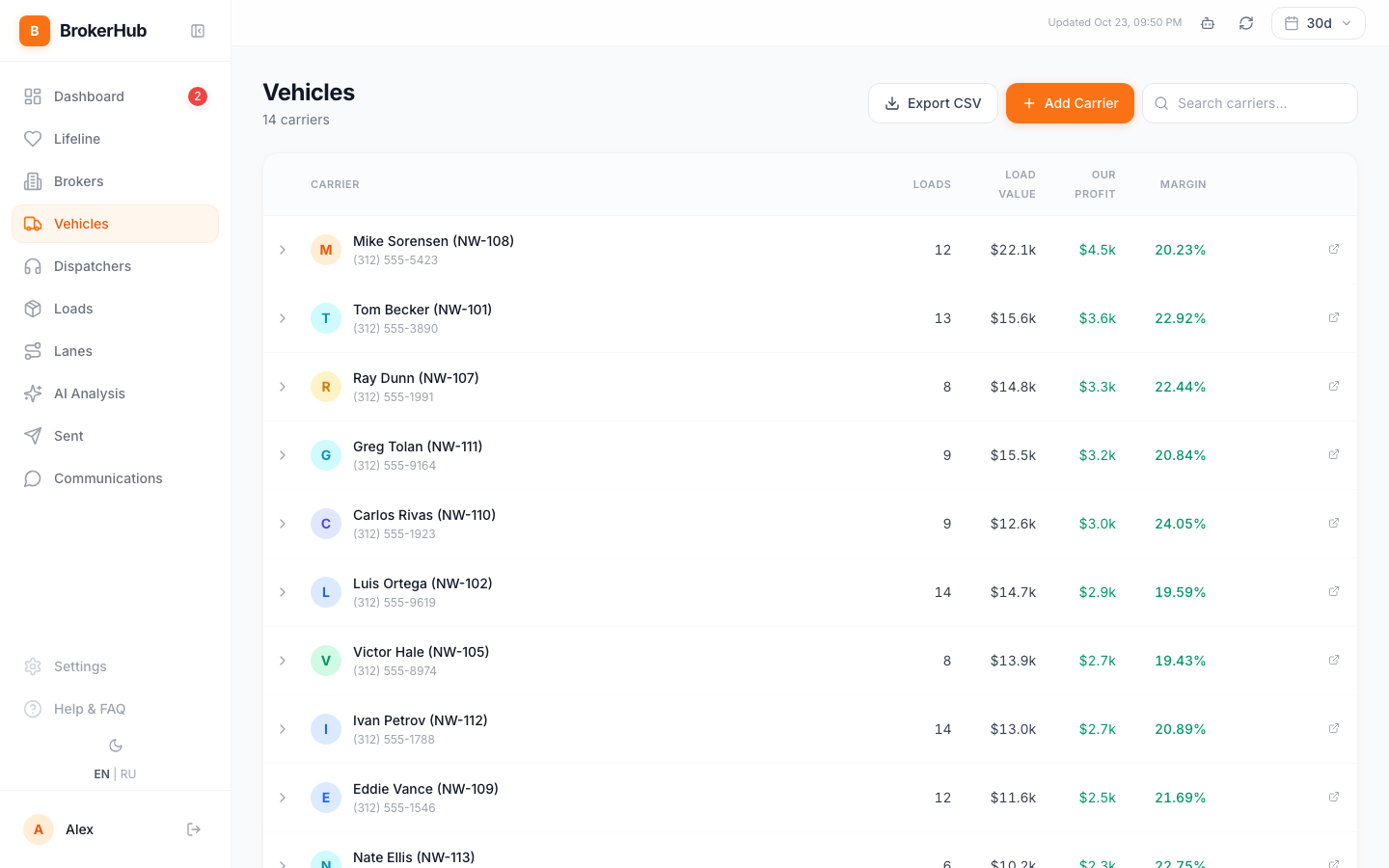
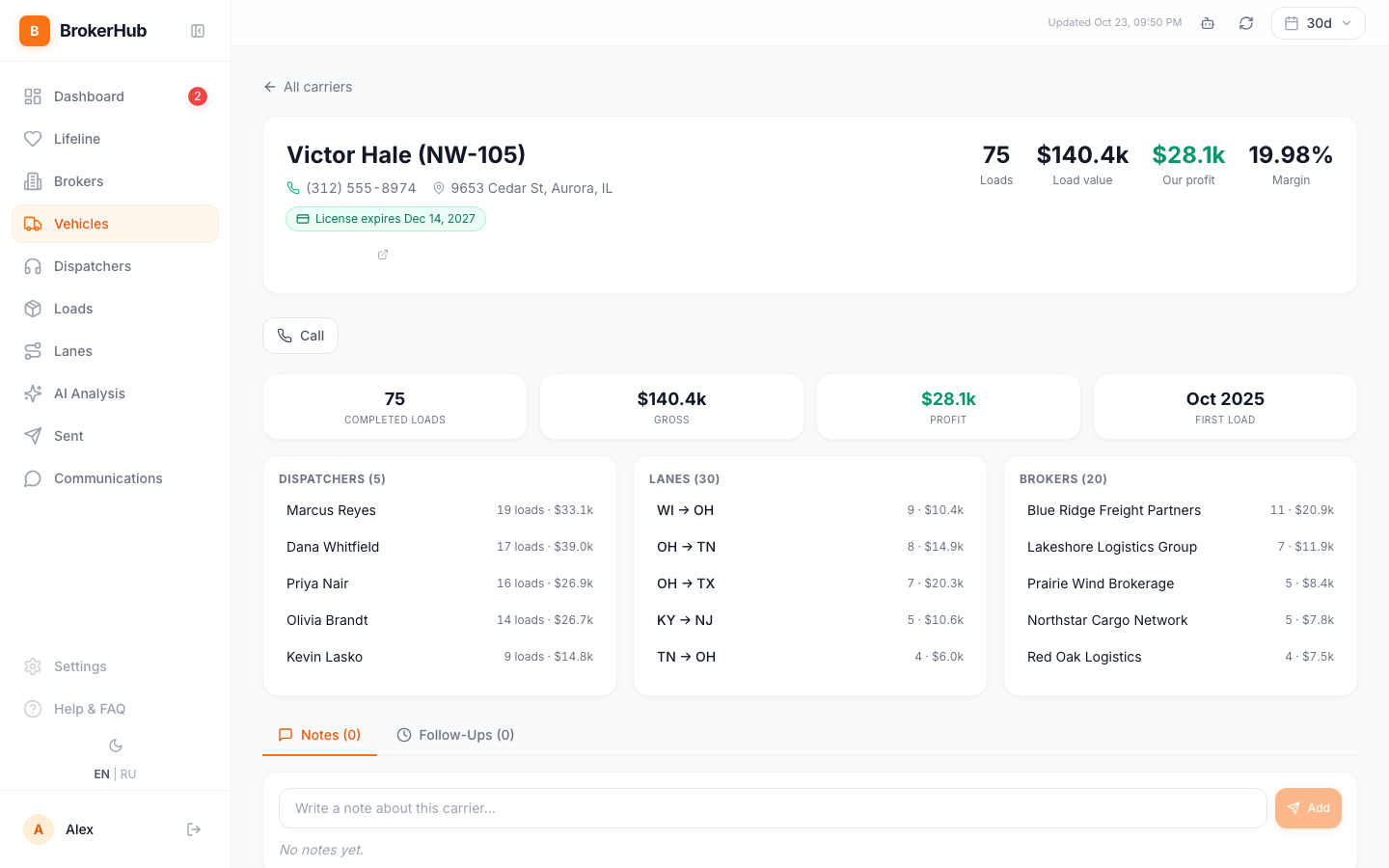
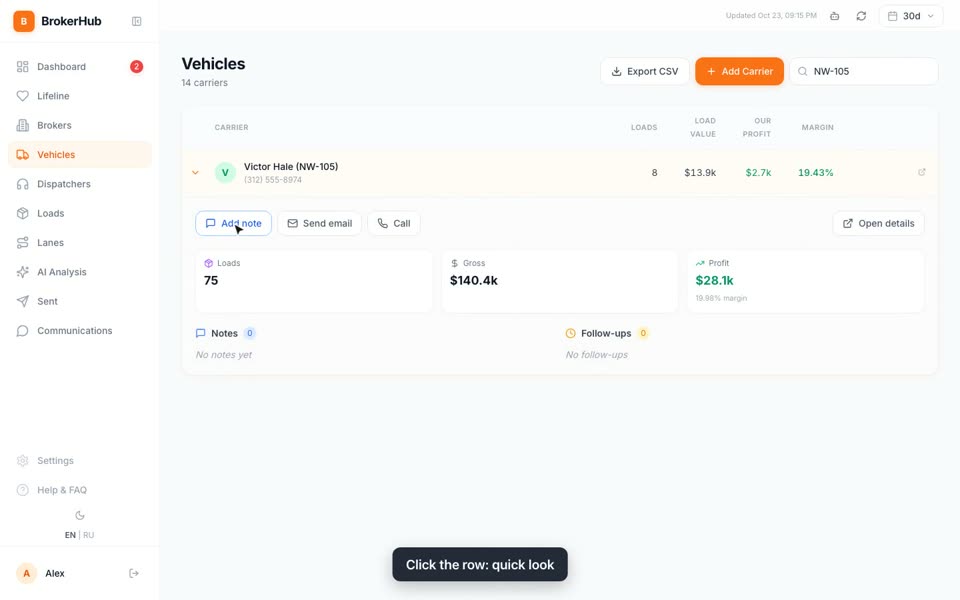
Each truck with its driver and unit number: LOADS, LOAD VALUE, OUR PROFIT and MARGIN for the period. The truck card shows which dispatchers booked it, its lanes, its brokers, and notes and follow-ups for the truck.
Dispatchers
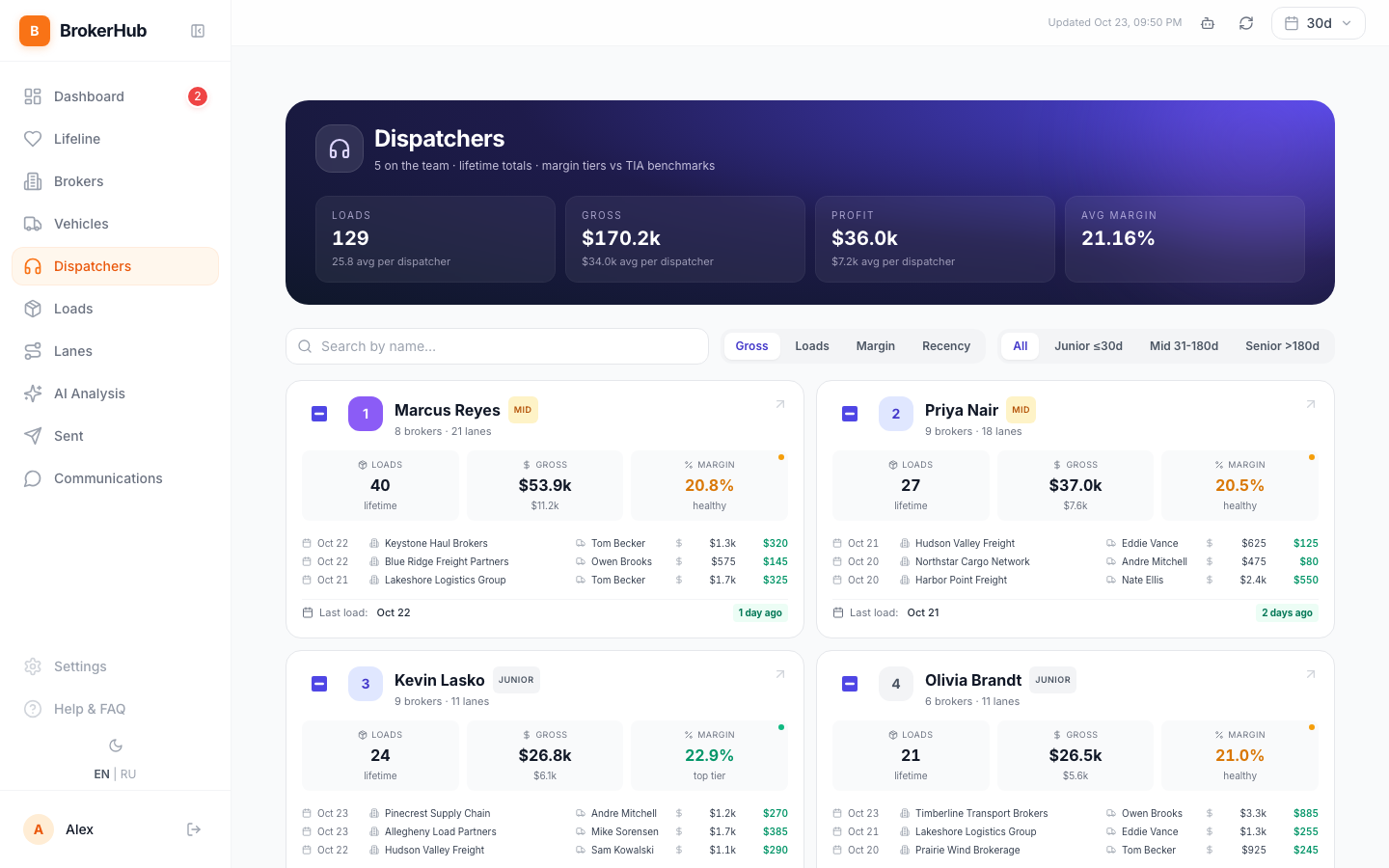
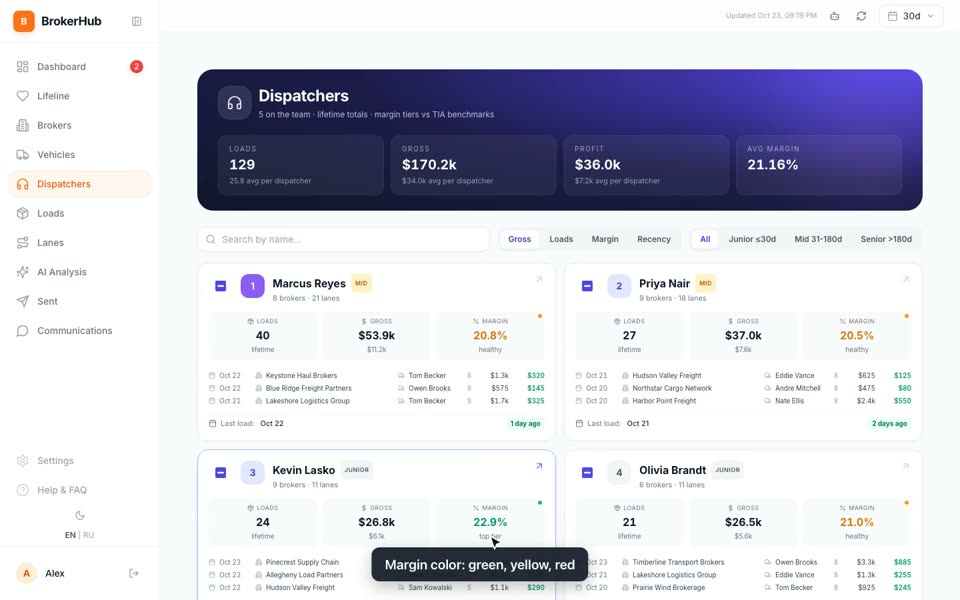
Team totals at the top, then one card per dispatcher: loads, gross, margin, number of brokers and lanes, latest loads, and how long ago the last load was. The margin color compares it with industry benchmarks.
Lanes
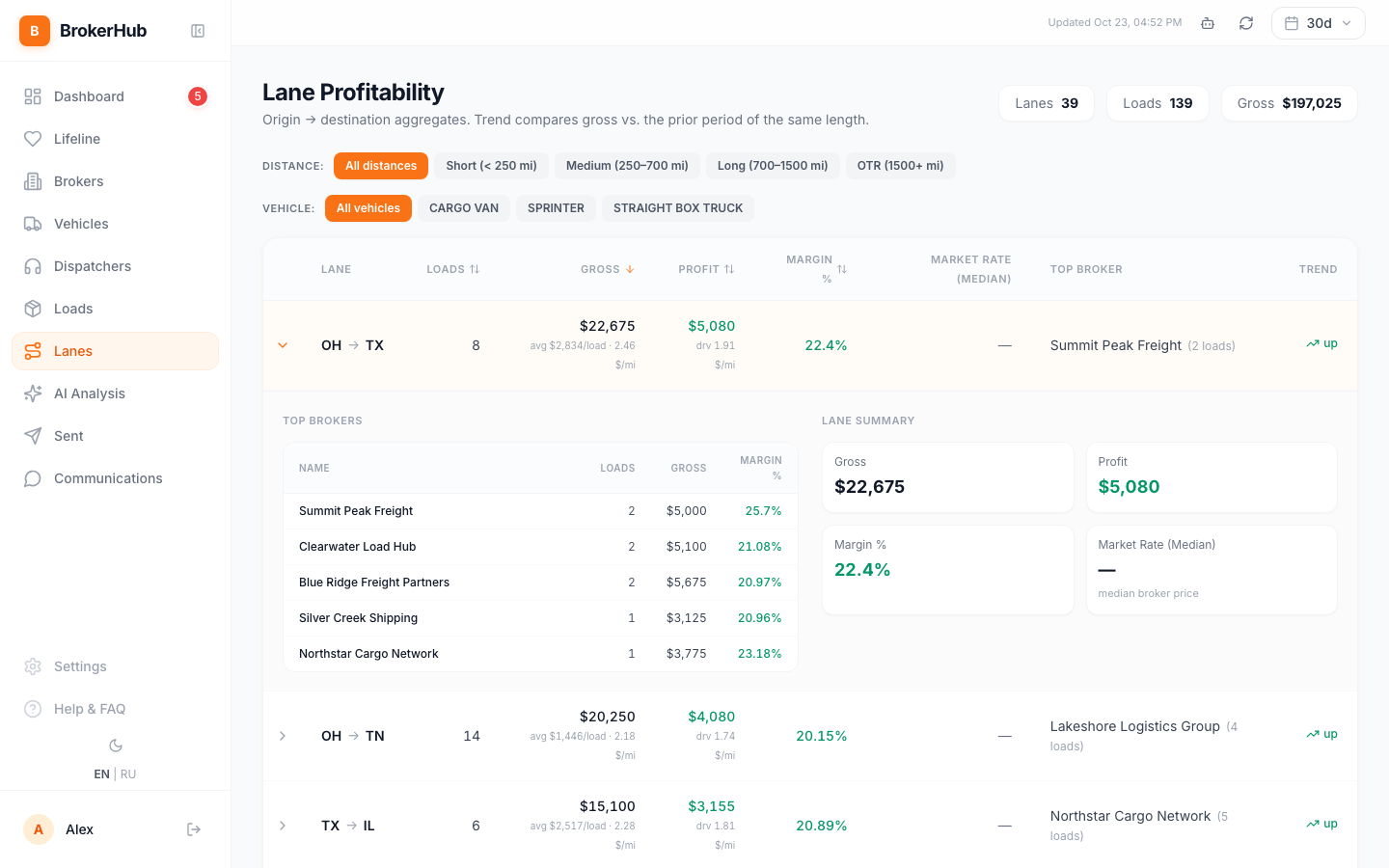
Profit by direction, state to state. For each lane: loads, gross, profit (also per load and per mile), margin, the top broker and the trend against the previous period of the same length.
AI Analysis
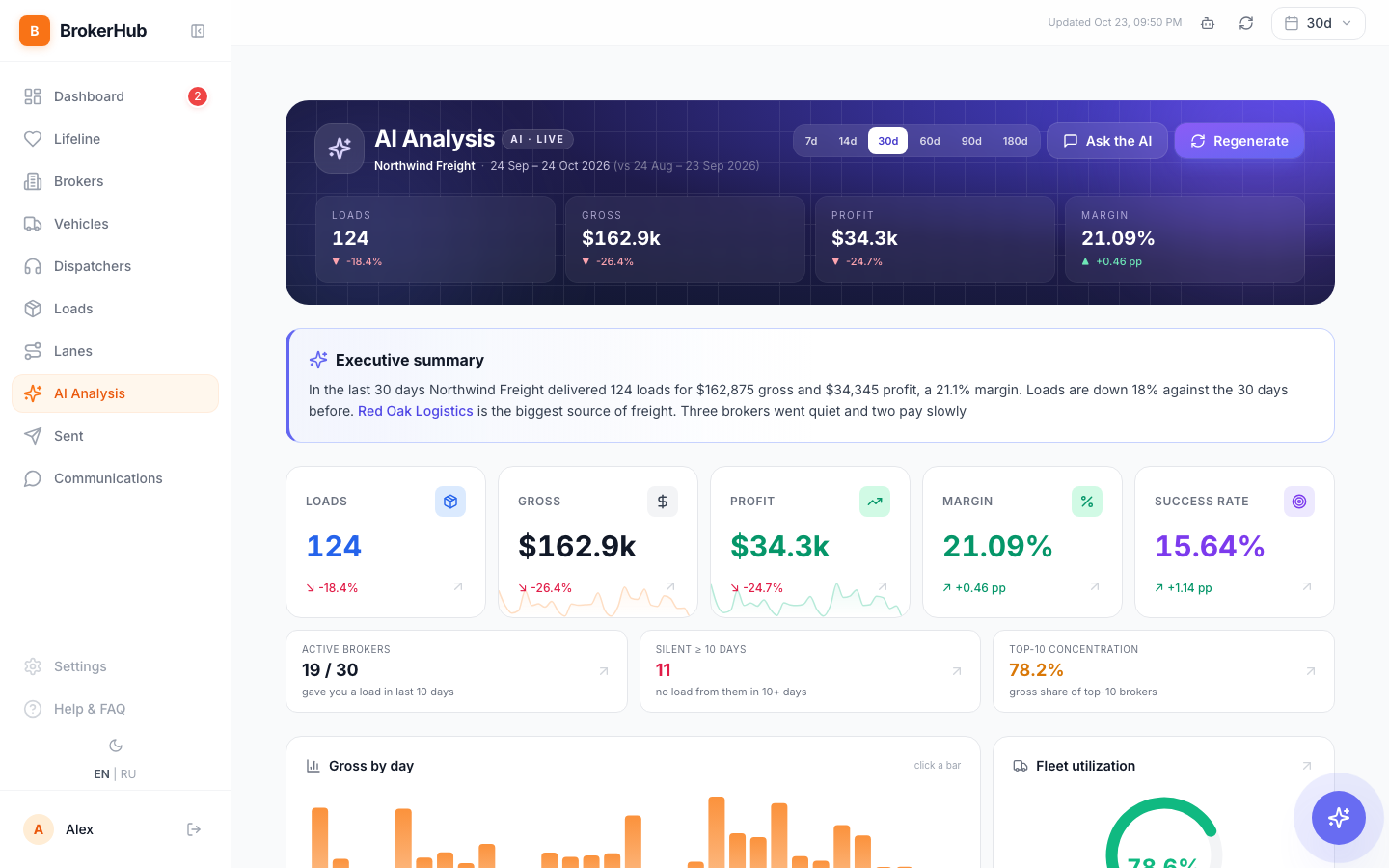
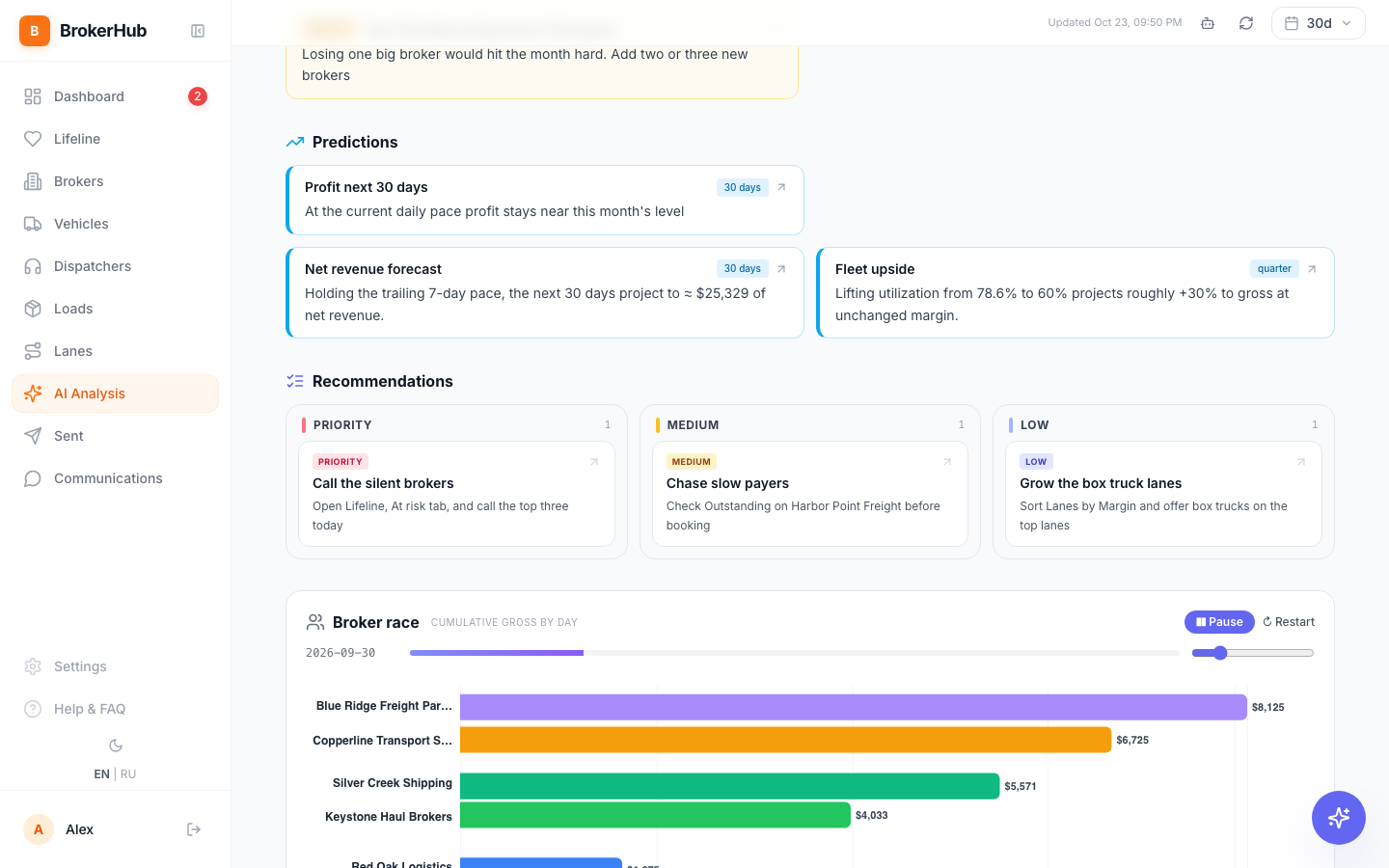
A report on the company for 7 to 180 days: loads, gross, profit, margin and success rate against the period before, a plain-words summary, charts, risks, opportunities and recommendations.
Sent and Communications
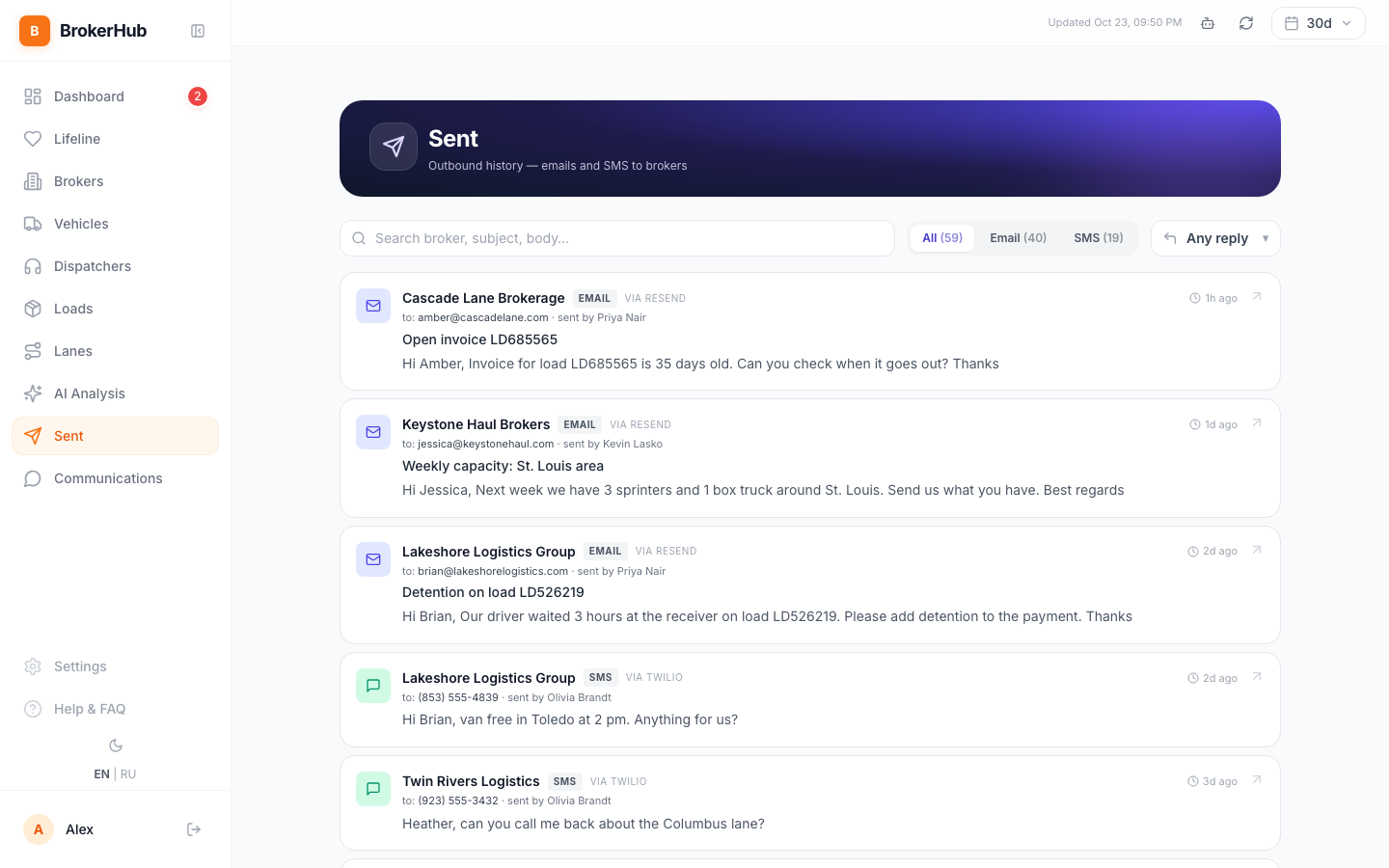
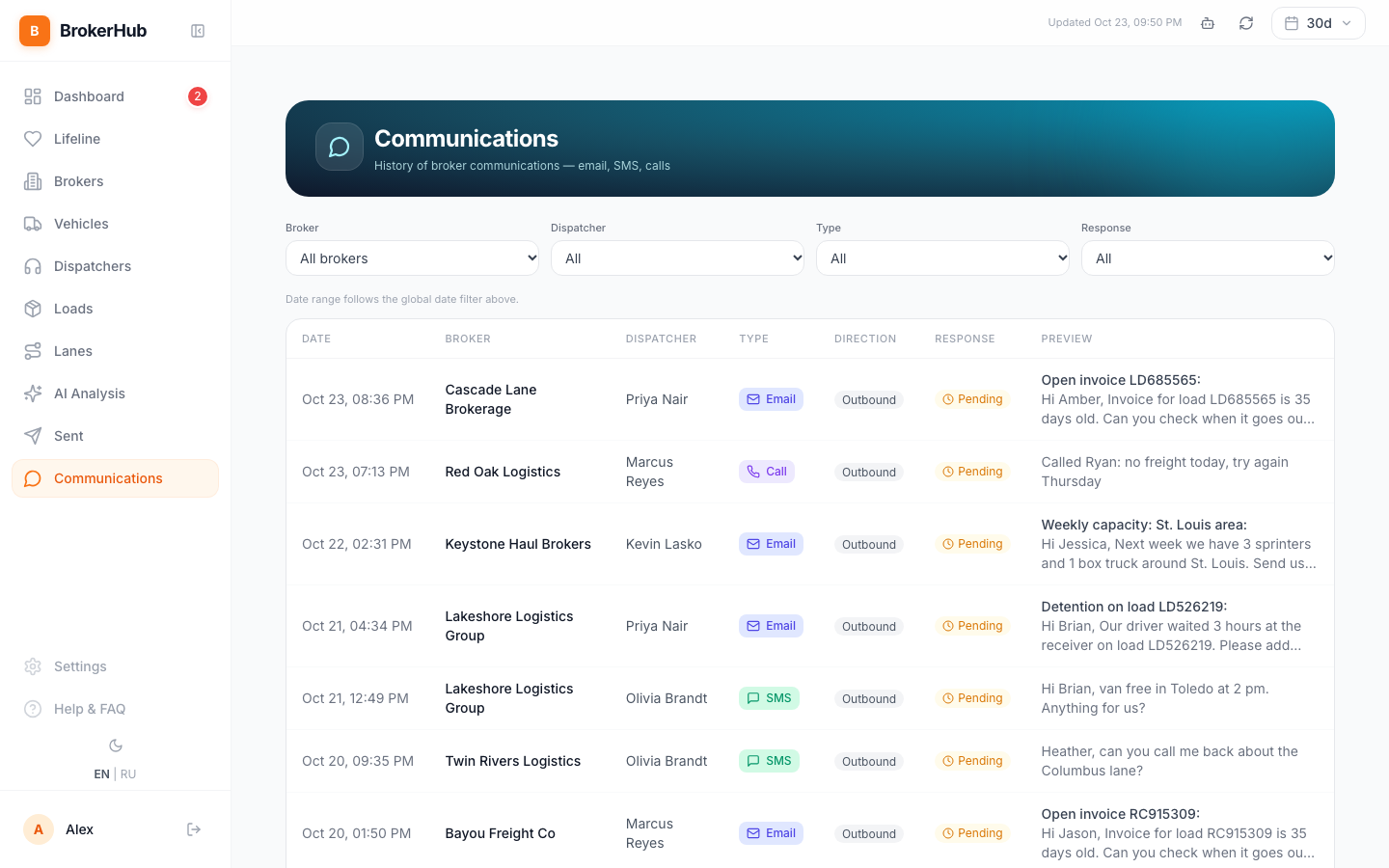
Sent: every email and SMS your team sent to brokers from Broker Hub. Communications: the same history as a table, with logged calls and filters by broker, dispatcher, type and response.
Settings
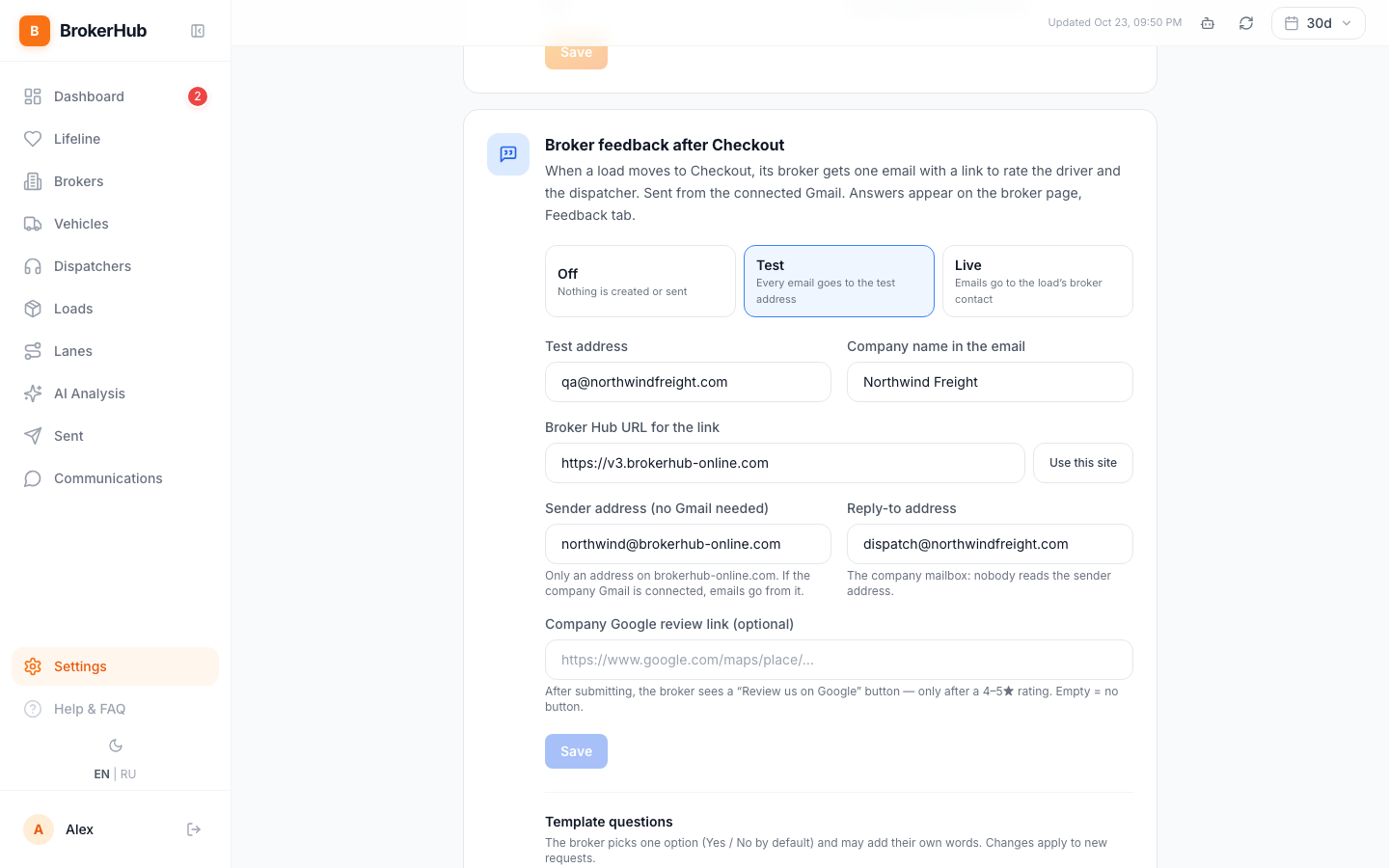
For owners and managers: Email sender (connect Gmail), ETL Finance, Risk & activity, Broker feedback after Checkout.
Invoices and Outstanding
Appear in the menu only if your company has ETL Finance connected, and only for owners and managers. Invoices lists broker invoices (pending, paid, short-paid, disputed). Outstanding shows which customers owe you money, live from your accounting. Without ETL Finance, each broker's unpaid money is in the Outstanding block on the broker card.
How to do it
Find a broker and open the card
- In the menu, click Brokers.
- Type part of the name or email in Search name, email...
- Click the broker's row. It expands with quick actions and the FMCSA line.
- Click Open details.
- Check the numbers at the top, then Top lanes (90d), Gross trend and Outstanding.
- Open the Loads tab for every load from this broker, or Feedback for how the broker rated your driver and dispatcher.
Find brokers fast: search, filters, sorting, Ctrl+K
- In Brokers, the search box finds a broker by name, email or tag. Type quick pay to see every broker with that tag.
- Click a quick filter above the table: Vetted, Has FMCSA, Fully insured, Has email, Tagged, No contact. The number in brackets is how many brokers fit. All clears it.
- Click a column header (LOADS, GROSS, PROFIT, MARGIN, LAST CONTACT) to sort.
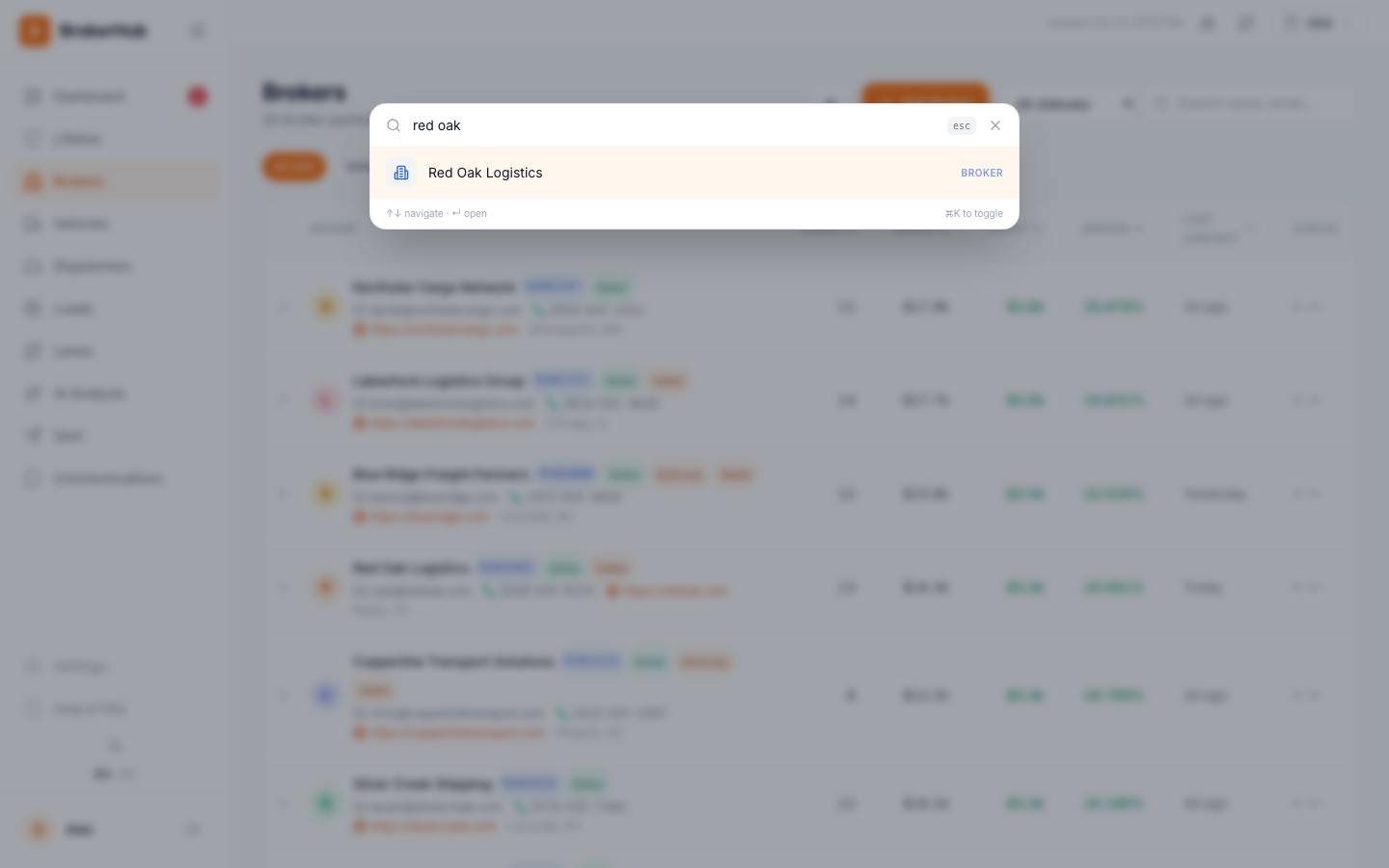
- From any screen, press Ctrl+K (Cmd+K on a Mac), type at least two letters, and press Enter to open the broker, truck or load.
Download a list as CSV
- Brokers: the download button left of Add Broker saves the list as CSV.
- Loads: Export CSV (page) saves the loads on the current page (50 loads per page).
- Vehicles: Export CSV saves the list of trucks.
Leave a note after a call
- Open the broker card. The Notes tab is open by default.
- Type what you agreed on in Write a note about this broker...
- Click Add. The note is visible to the whole team, and LAST CONTACT for this broker updates.
Shortcut: in Brokers, click the row and use Add note without opening the card.
Set a follow-up and close it
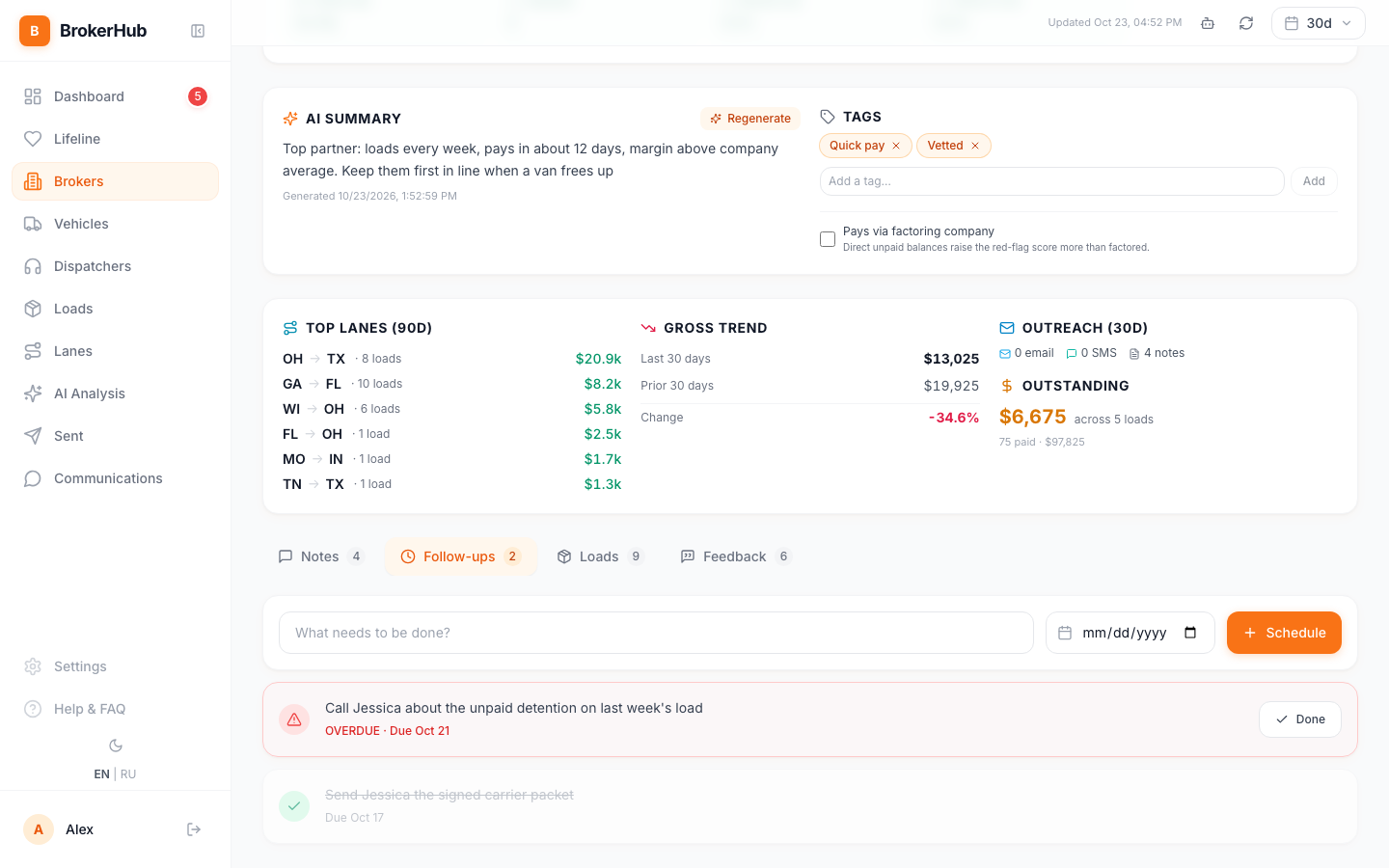
- Open the broker card and the Follow-ups tab.
- In What needs to be done? write the task, for example "Send van availability for the Atlanta lane".
- Pick the date.
- Click Schedule.
- On the due day the follow-up shows up on the Dashboard under Follow-ups, and the red counter next to Dashboard grows.
- When it's handled, click Done.
Find who to call today
- Open Lifeline. The At risk tab opens first: brokers that stopped giving loads. Each row shows loads, gross, the last load date and how many days the broker is silent.
- Click the arrow on the right of a row to see the broker's last 5 loads with lane and profit.
- Check the Cooling tab too: these brokers are slowing down and are easier to bring back.
- Or scroll the Dashboard to Silent Brokers: no contact for 14+ days.
- Click the broker, call, and leave a note.
Check a broker before you take a load
- On the Dashboard, look at the Red-flag watch-list. Click the broker.
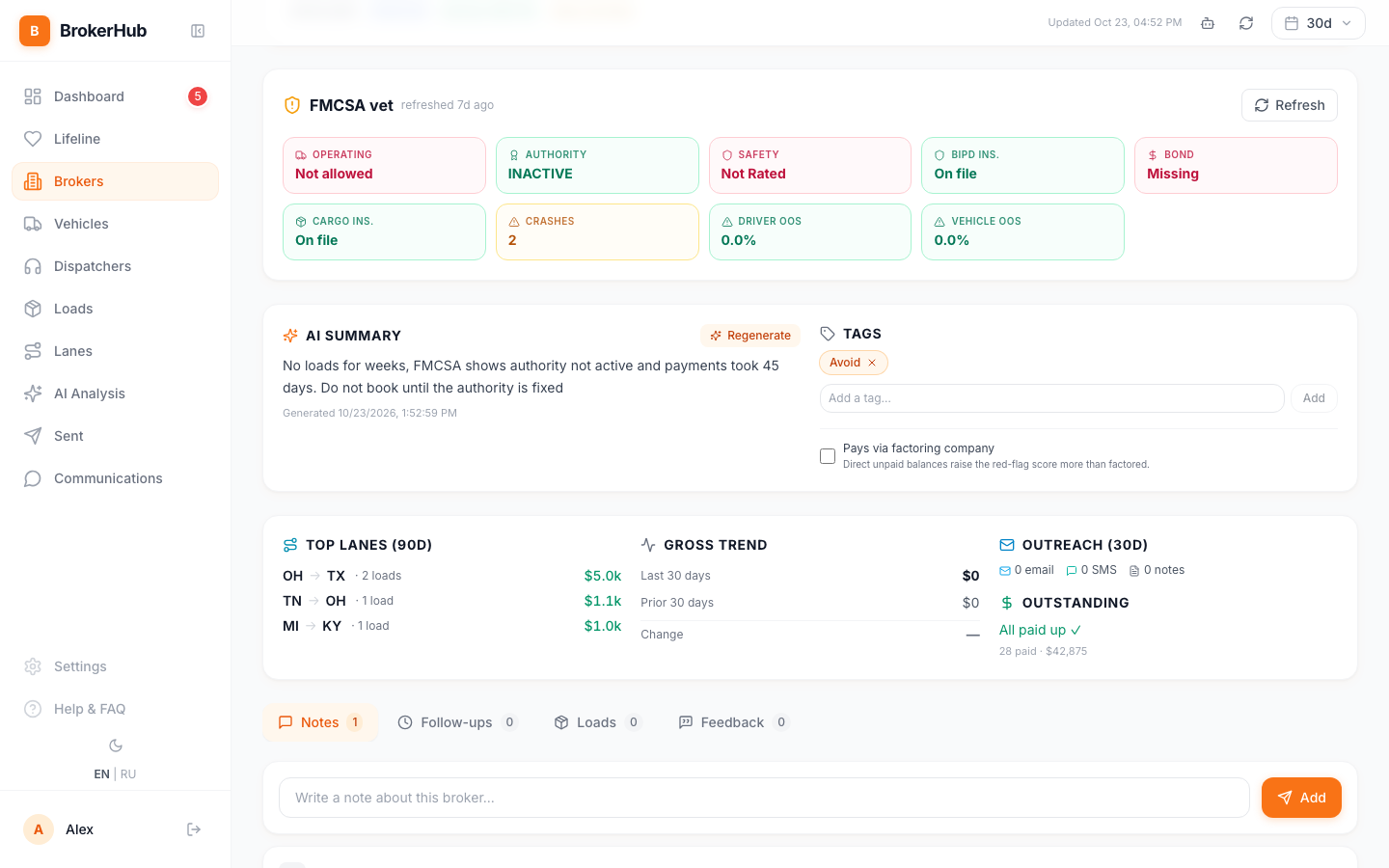
- In FMCSA vet, check Operating, Authority, Safety, the insurance tiles and Crashes. Green is fine, red is a problem.
- Read the AI summary: how the broker pays and whether to work with them. If there is no summary yet, click Generate.
- Add a tag in Add a tag… and click Add, for example Vetted, Quick pay, Slow pay or Avoid. The whole team sees the tag in the list.
- To refresh the FMCSA data, click Refresh in the FMCSA vet block.
- In Brokers, the quick filters Vetted and Fully insured show only brokers you can work with safely.
If the broker pays through a factoring company, tick Pays via factoring company under the tags. Direct unpaid balances raise the red-flag score more than factored ones.
Write to a broker
- In Brokers, click the row and Send email, or use Call to dial from your phone or computer.
- In the email form, check To, type the subject and the message, and click Send.
- The email goes from your company Gmail if it's connected in Settings, otherwise from a Broker Hub address. It shows up in Sent and Communications.
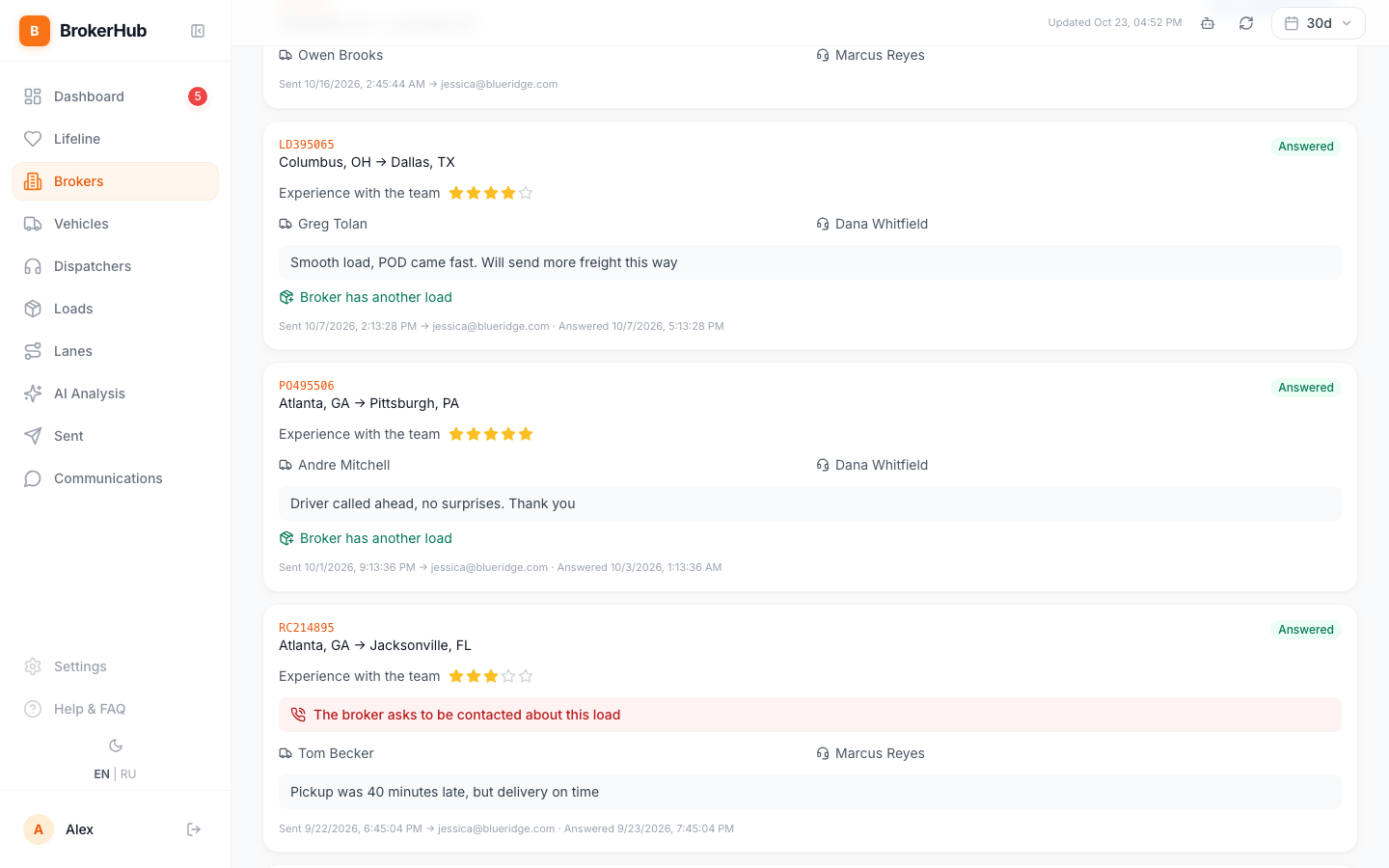
See how brokers rate your team
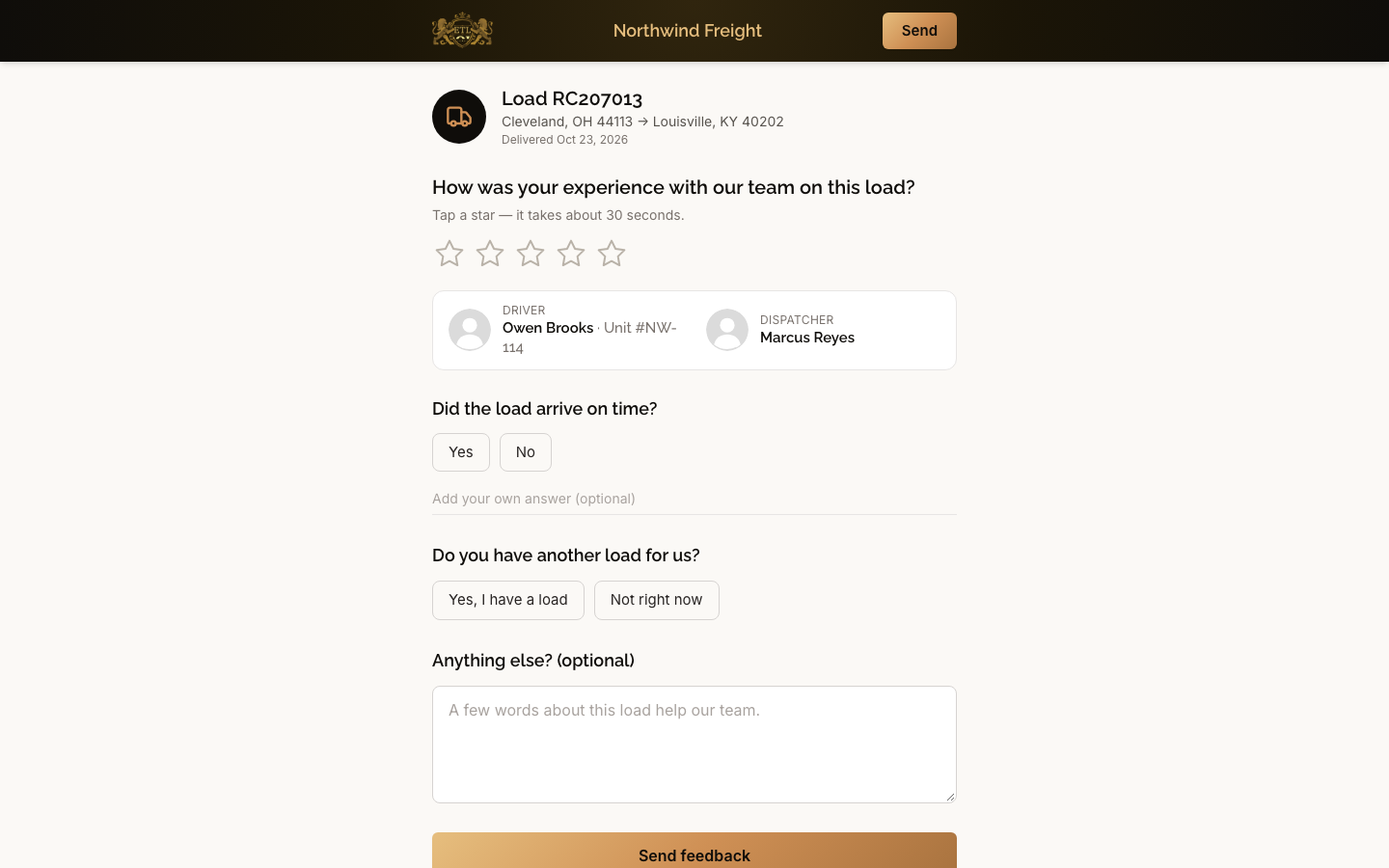
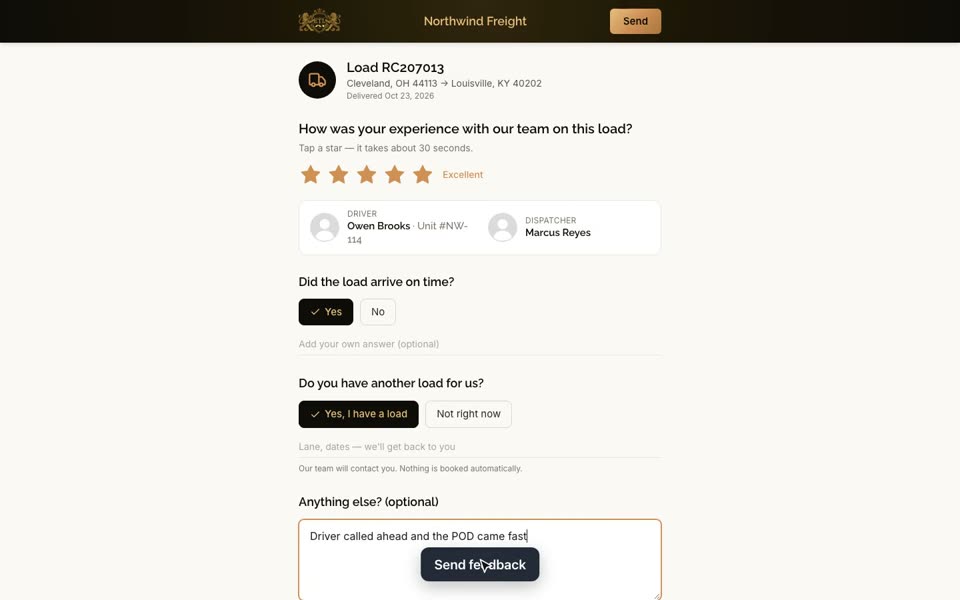
- When a load moves to Checkout, the broker gets one email with a link (if broker feedback is on in Settings). The broker doesn't need an account.
- The broker taps the stars for the team, answers a few short questions (for example Did the load arrive on time? and Do you have another load for us?), can add a comment, and clicks Send feedback.
- In Broker Hub, open the broker card and the Feedback tab.
- At the top: Answered, Avg rating, Want a call back, Has next load.
- Below: every request with its load, lane, stars, driver, dispatcher, answers and comment. Requests without an answer are marked as waiting.
Turn on broker feedback
For owners and managers.
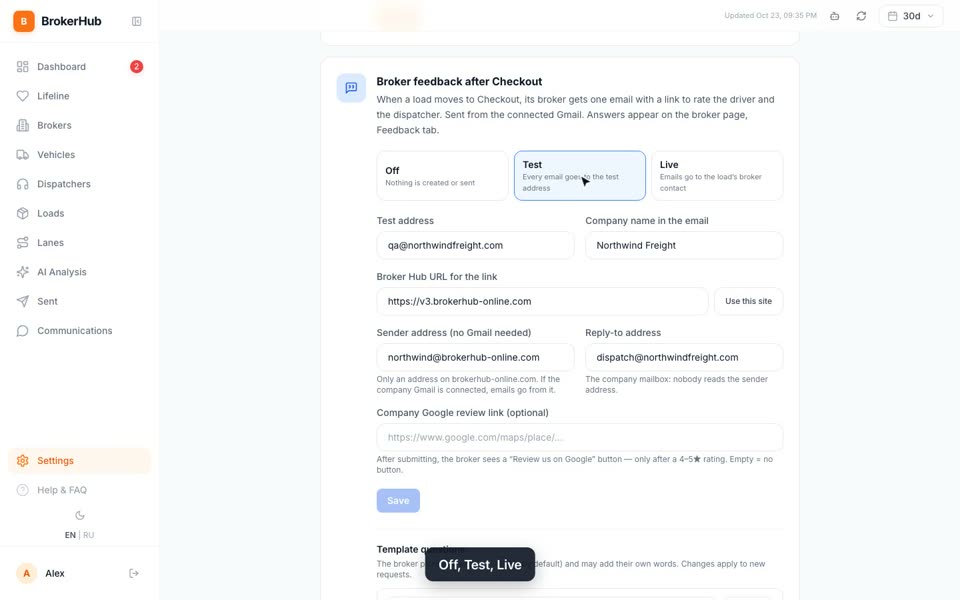
- Open Settings and scroll to Broker feedback after Checkout.
- Pick the mode: Off sends nothing, Test sends every email to your Test address, Live sends it to the broker contact on the load. Start with Test.
- Check Company name in the email, Sender address (no Gmail needed) and Reply-to address (the mailbox where broker replies should land). Company Google review link is optional: after a 4–5 star rating the broker sees a "Review us on Google" button.
- Click Save. Turning on Live asks you to confirm.
- Under Template questions, click + Question, type the question, list the answers separated by commas (2–10), pick when to ask it (always, after a good experience, after a bad experience), and click Save questions. Up to 5 questions.
Connect Gmail
For owners and managers.
- Open Settings. Email sender shows using fallback while Gmail isn't connected.
- Click Connect Gmail and sign in with the company Google account.
- After that, emails to brokers go from your address, replies land in your Gmail, and Sent shows whether the broker replied.
Broker Hub asks only for sending email and reading replies to its own threads.
Add a broker by hand
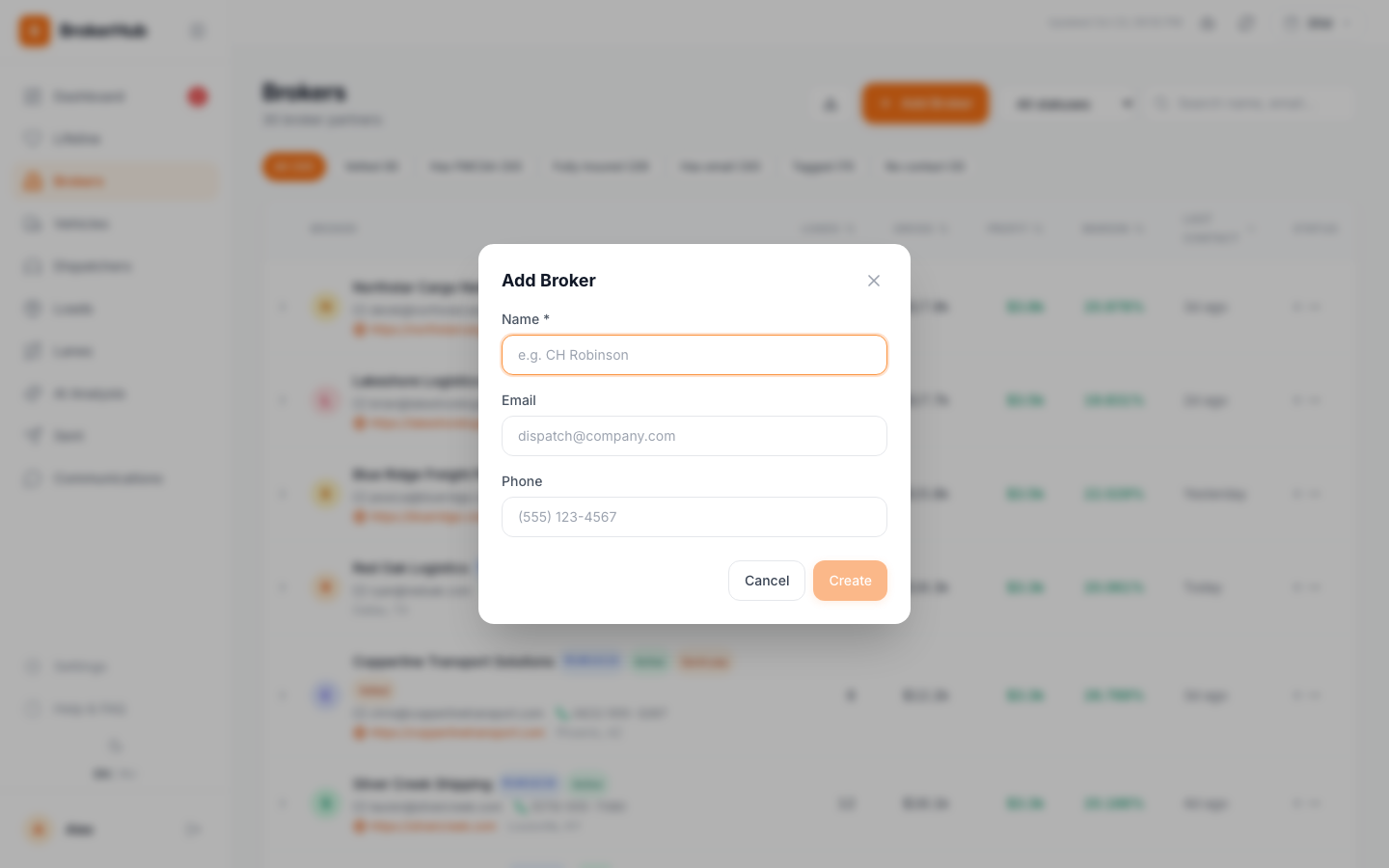
Brokers from CargoETL appear on their own. If you need one before the first load: 1. In Brokers, click Add Broker. 2. Type the Name (required), Email and Phone. 3. Click Create. The broker appears in the list.
Edit a broker
- Open the broker card.
- Click the pencil next to the name.
- Change Name, Status, Email or Phone. Display name override sets the name your team sees everywhere, if the name from the load board is unclear.
- Click Save.
See which lanes make money
- In the menu, click Lanes.
- Click Profit in the header to sort by profit, or Margin % to sort by margin.
- Filter by distance (Short, Medium, Long, OTR) and vehicle type (CARGO VAN, SPRINTER, STRAIGHT BOX TRUCK).
- Click a lane to see Top Brokers on it and the Lane Summary.
- Change the period at the top right. Trend shows whether the lane grows against the previous period.
Find a load and export loads to CSV
- In the menu, click Loads.
- BROKER $ is what the broker pays you, DRIVER $ is what you pay the driver, PROFIT is the difference.
- Pick a dispatcher in All dispatchers to see only their loads.
- Click a status (completed, checkout, in transit, driving to pickup and others) to keep only those loads. Click All statuses to reset.
- Search by broker name, driver name or load number in Search broker, route...
- Click Export CSV (page) to download the loads on this page.
See profit by truck
- In the menu, click Vehicles.
- Find a truck by driver name or unit number in Search carriers...
- Click the row for a quick look: Add note, Send email, Call, notes and follow-ups.
- Click Open details: DISPATCHERS, LANES and BROKERS for this truck, and the Notes and Follow-Ups tabs.
- Leave a note for the team in Write a note about this carrier… and click Add, for example when the truck goes in for service.
Compare dispatchers
- In the menu, click Dispatchers. The top shows the team's LOADS, GROSS, PROFIT and AVG MARGIN for the period.
- Each card: loads, gross, margin, brokers and lanes, the latest loads, and Last load. The margin color: green top tier, yellow healthy, red below industry benchmarks.
- Sort with Gross, Loads, Margin or Recency. Filter by experience with Junior ≤30d, Mid 31-180d, Senior >180d.
- Tick the box on several cards to see totals for just that group.
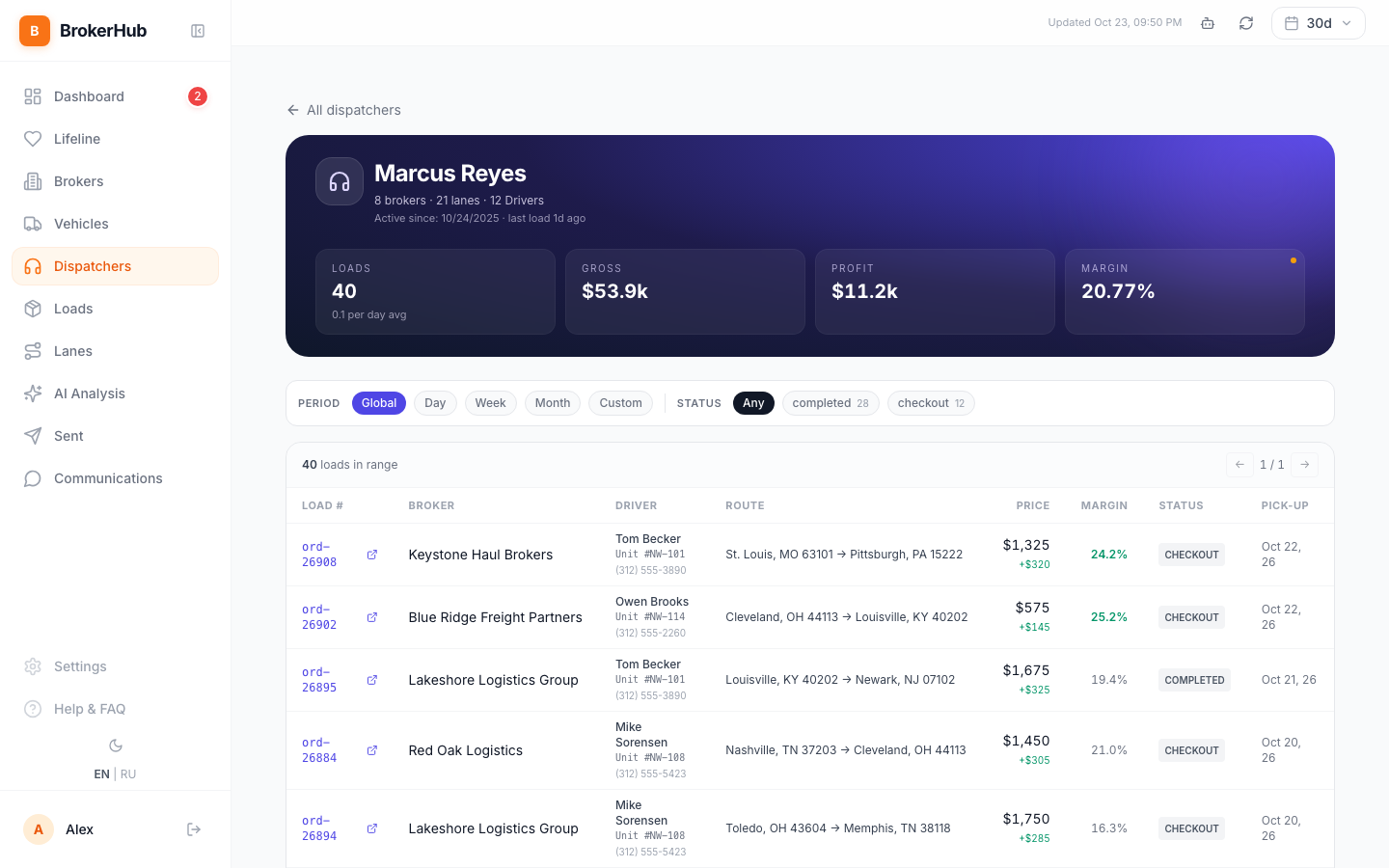
- Click a card to open the dispatcher: every load with broker, driver, route, price, margin and status, filters by period and status, Top brokers and Top lanes.
See every email, SMS and call
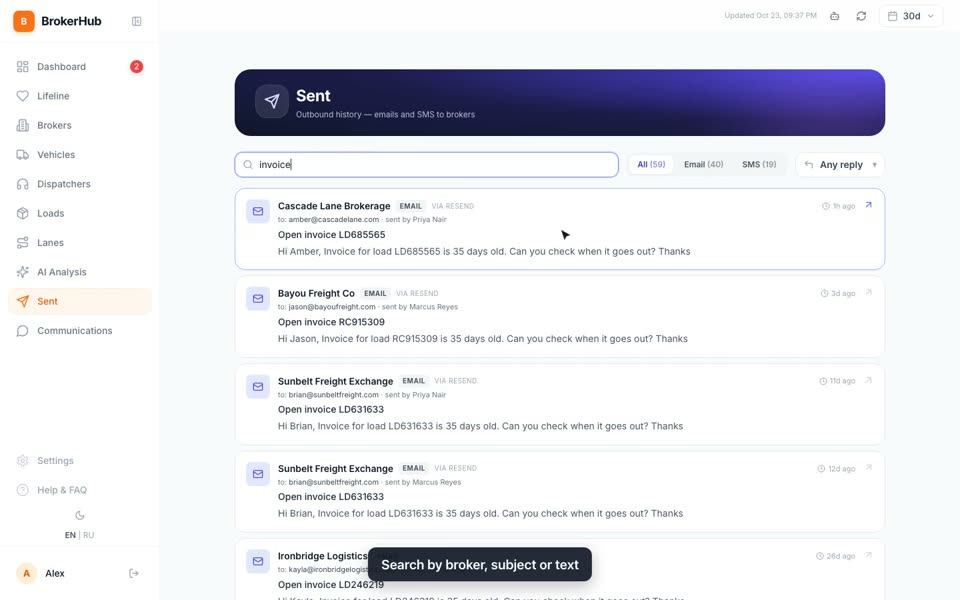
- In the menu, click Sent: every email and SMS to brokers, newest first, with who sent it.
- Switch All, Email, SMS. Search by broker, subject or text. Any reply filters by whether the broker replied.
- Click Communications for the same history as a table, including logged calls.
- Filter by Broker, Dispatcher, Type and Response. The dates follow the period at the top right.
Whether the broker replied is known only for emails sent from a connected Gmail. For SMS, calls and other emails the response shows as pending.
Read the AI report
- In the menu, click AI Analysis.
- Read the Executive summary first.
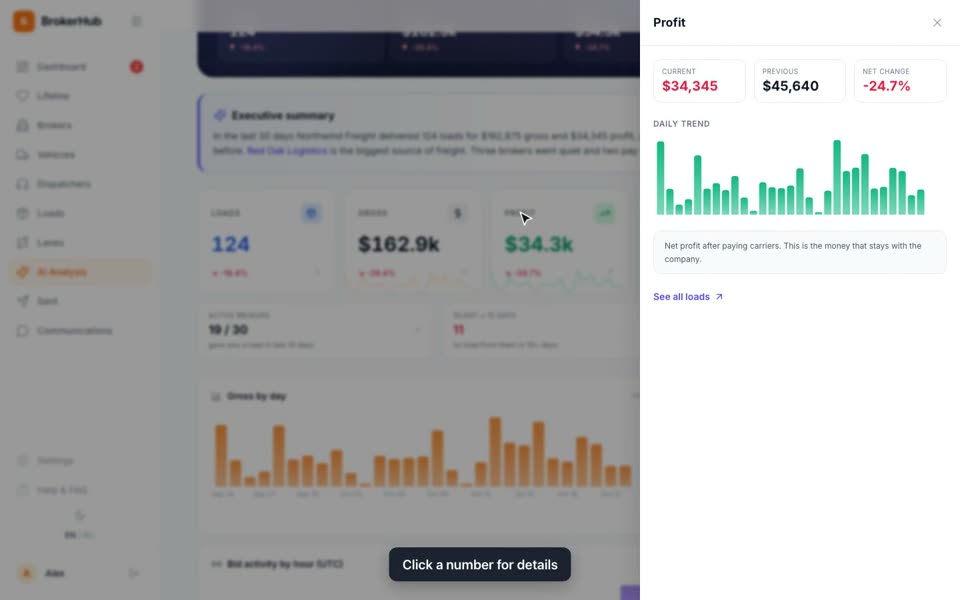
- Click any number (Loads, Gross, Profit, Margin, Success rate) to see how it's counted and the daily trend.
- Scroll to the charts (Gross by day, Fleet utilization, Bid activity by hour (UTC)), then Risks, Opportunities, Predictions and Recommendations.
- Owners and managers pick the period (7d to 180d) and click Regenerate for a fresh report. It takes about a minute. Dispatchers read the latest report.
- Ask the AI answers questions about the numbers in this report.
Tune red-flag scores
For owners and managers. In Settings → Risk & activity, two sliders soften FMCSA red flags for brokers who give you loads often: - Activity threshold: from what activity score the softening starts (0–100) - Max dampening: how many severity points are removed for the most active brokers (0–10)
Click Save.
Switch language, theme and menu
- Click EN or RU at the bottom of the menu to switch the language. Broker Hub remembers it.
- Click the moon icon for the dark theme, click again to go back.
- Click the button next to the logo to shrink the menu to icons, and again to open it.
- Help & FAQ has short answers. Type a word in the search box and click the question.
FAQ
Where do the loads and money come from?
From CargoETL, about once an hour. Profit is broker price minus driver price. Only delivered loads (completed and checkout) count in gross and profit.
Can I add a load by hand?
No. Loads come only from CargoETL. Add or fix the load in CargoETL, and it shows up in Broker Hub after the next sync.
Why don't the numbers match what I saw yesterday?
Check the period at the top right. Every number on the screen is for that period.
I added a note. Who sees it?
Everyone in your company who uses Broker Hub.
What does the number in the Red-flag watch-list mean?
How serious the problems are: FMCSA authority, insurance, crashes, unpaid money. Brokers who give you loads often get a softer score (see Tune red-flag scores).
Can I fix the broker's name?
Yes. On the card, click the pencil next to the name. Only owners and managers can edit brokers.
Why don't I see Settings, Invoices or Outstanding?
Settings is for owners, admins and managers. Invoices and Outstanding also need ETL Finance connected for your company.
It says "Daily limit reached". What now?
Dispatchers have a daily limit on AI features, emails, SMS and calls. It resets the next day. If you need more, ask your manager.
The broker didn't get the feedback email
Check Settings → Broker feedback after Checkout: the mode must be Live (in Test all emails go to the test address). The request goes once, when the load moves to Checkout, to the broker contact on the load.
Did the broker reply to my email?
You can see replies only for emails sent from a connected Gmail. Connect it in Settings → Email sender.
What is the robot icon at the top?
The assistant. Ask how something works in Broker Hub, or ask it to draft an email to a broker. It never sends on its own: you check the draft and click send.
Is there a chat with brokers in Broker Hub?
Not yet. Notes, email and SMS to brokers are there, a chat is not.
Does it work on a phone?
Yes. The menu opens from the button with three lines at the top left.
Where did the blue hints and the welcome tour go?
Each blue hint closes with its cross and doesn't come back. The welcome tour shows once, on your first visit.
All videos (16)
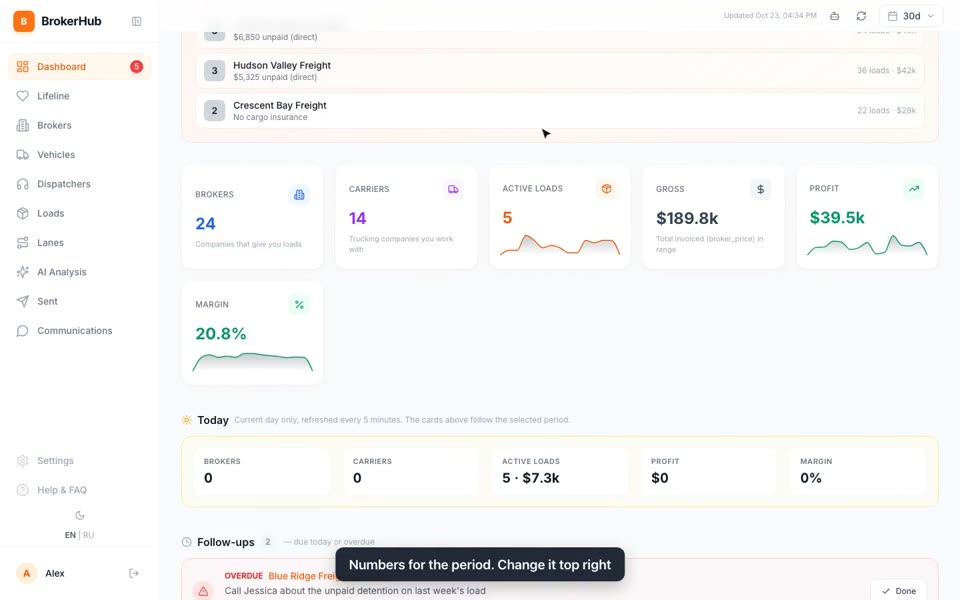 Broker Hub in 60 seconds1:05
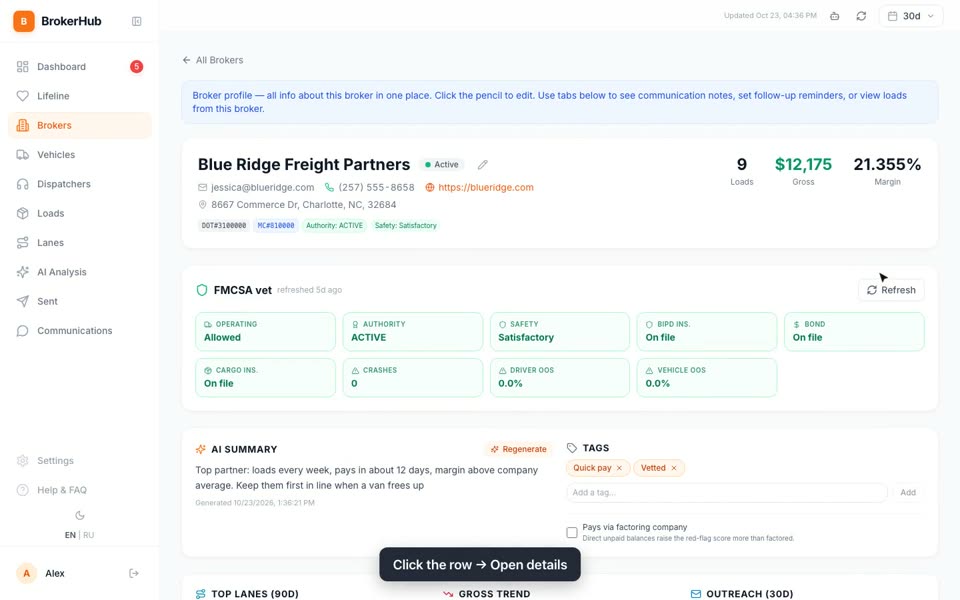 Find a broker and open the card0:52
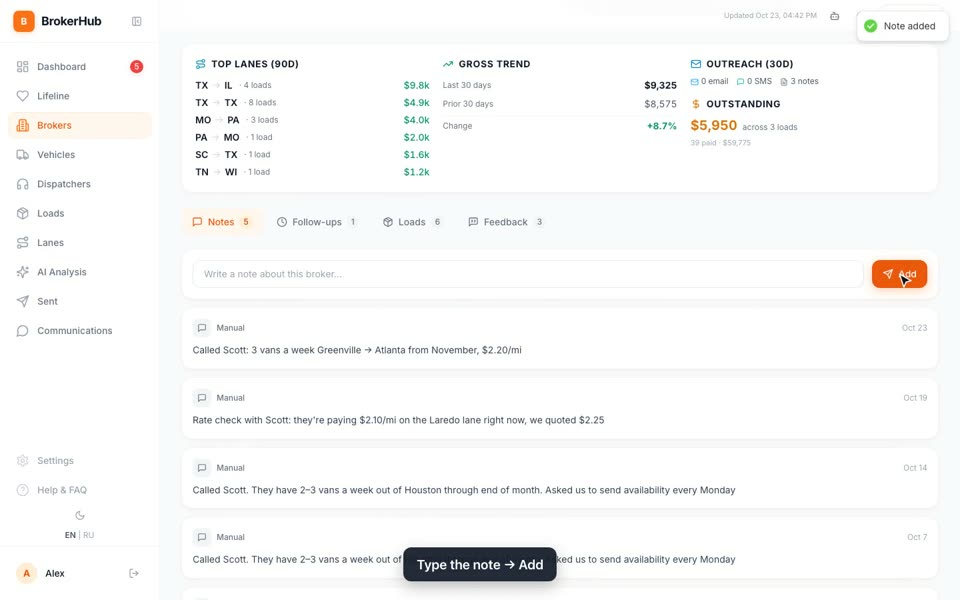 Notes and follow-ups0:48
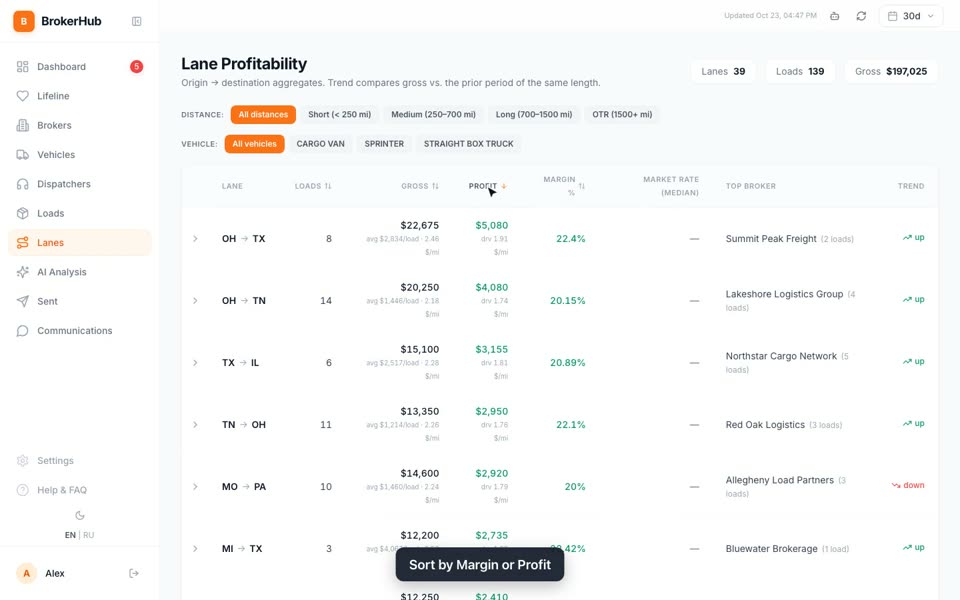 Lane profitability0:50
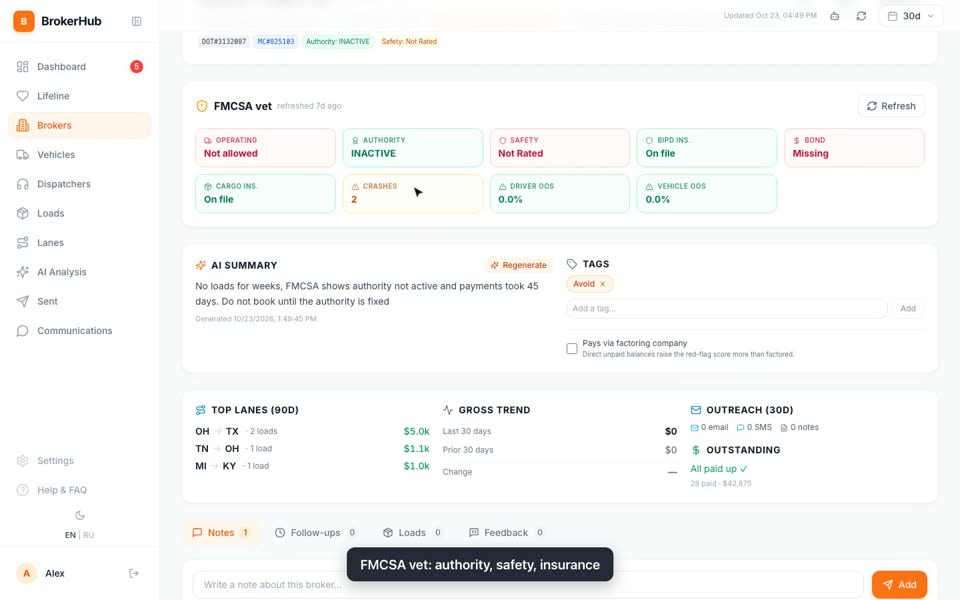 Check a broker before a load0:48
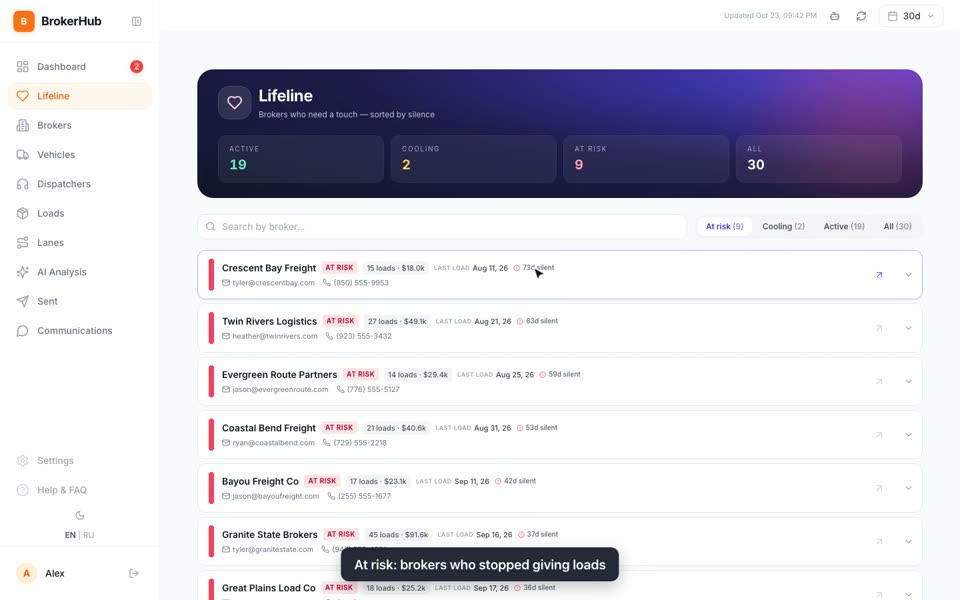 Who to call today0:50
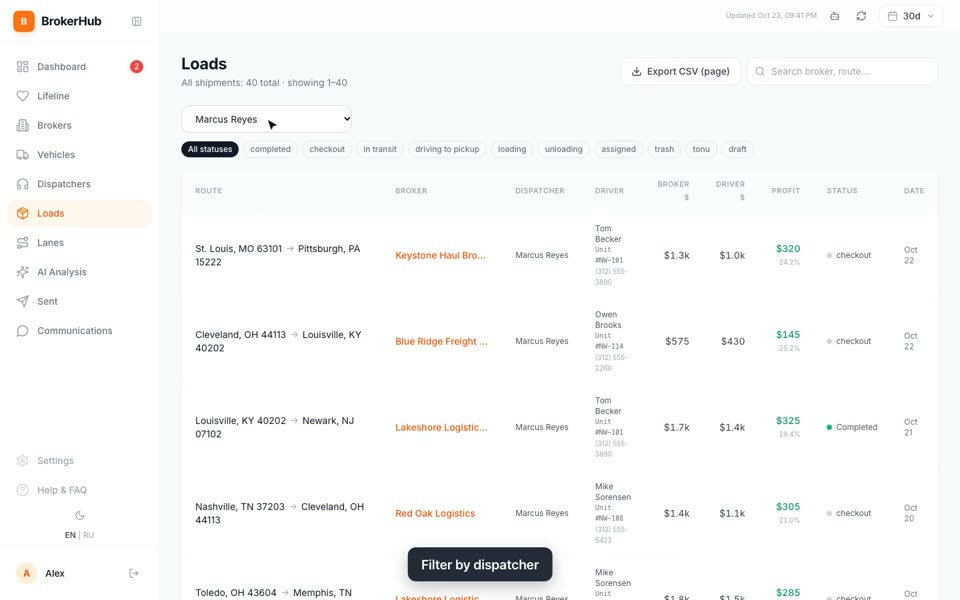 Find a load and export to CSV0:46
 Profit by truck0:43
 Compare dispatchers0:53
 Add and edit a broker0:48
 Find brokers fast0:45
 How brokers rate your team0:50
 Turn on broker feedback0:55
 Every email, SMS and call0:49
 Read the AI report0:47
 Language, theme and help0:35